IPTV is more than an application or a playlist. A complete IPTV setup combines a content source, a connection method, a media player, optional program-guide data, and a compatible device. When one part is misconfigured, the symptoms can include missing channels, buffering, duplicate entries, broken logos, or an EPG that shows “No Information.”
This Best IPTV Guide 2026 explains how the pieces work together and shows you where to continue when you need a practical tool or device-specific tutorial. You can use the site’s IPTV Checker Pro to inspect authorized IPTV connection details, the M3U8 Checker to test compatible playlist URLs, or the M3U to EPG Converter when you need to work with playlist metadata and XMLTV output.
Important: IPTV technology is legal. The legality of a particular stream depends on whether the provider has the rights to distribute the content. Use services, playlists, and credentials that you own or are authorized to test. Never publish private usernames, passwords, or playlist URLs.
Quick Answer: What Is the Best IPTV Setup in 2026?
There is no single best IPTV product for every viewer. The best setup depends on your device, the channels you are authorized to watch, your preferred login method, and whether you need an electronic program guide.
| IPTV component | Best choice depends on | What to check |
| IPTV service | Legitimacy, coverage, reliability, and support | Transparent ownership, terms, pricing, and channel availability |
| Connection method | Your player and device | M3U playlist or Xtream Codes API support |
| IPTV player | Your operating system and remote control | M3U, EPG, categories, favorites, and playback compatibility |
| EPG source | Your region and channel lineup | XMLTV support, channel IDs, time zone, and coverage |
| Stream format | Device hardware and player support | HLS/M3U8, MPEG-DASH, H.264, and H.265 compatibility |
| Network | Viewing quality and location | Stable Wi-Fi or Ethernet, low congestion, and sufficient bandwidth |
| Diagnostic tool | The problem you want to investigate | M3U analysis, M3U8 testing, EPG matching, or XMLTV validation |
A strong workflow is simple: start with an authorized M3U or Xtream Codes connection, inspect the available streams, add a compatible EPG/XMLTV source, and then configure the playlist in a player that supports your television, computer, phone, or streaming device.
How IPTV Works
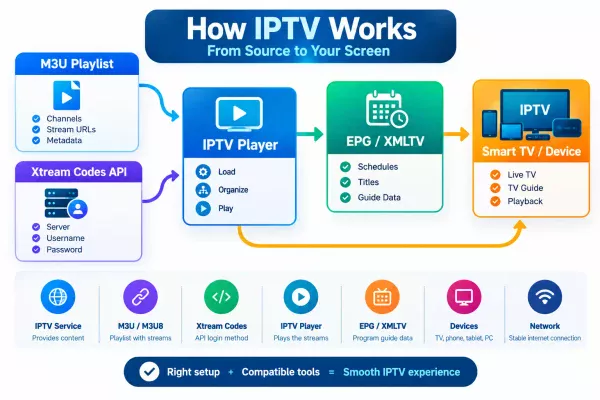
IPTV stands for Internet Protocol Television. It delivers live channels or on-demand video through an internet protocol network instead of a traditional terrestrial, satellite, or cable signal.
A player requests a stream from the service. The service returns video data in a format the device can decode. A playlist or account connection tells the player where channels are located. EPG data adds program titles, descriptions, and schedules. The player then presents the channels and guide through an interface designed for a television, computer, phone, or streaming box.
The main components are:
| Component | Role in an IPTV setup |
| Service or provider | Supplies authorized live or on-demand content |
| M3U playlist | Lists channels, stream URLs, groups, logos, and metadata |
| Xtream Codes API | Lets compatible players load account data using a server URL, username, and password |
| IPTV player | Organizes and plays the streams |
| EPG/XMLTV source | Provides program schedules and channel metadata |
| Device | Runs the player and decodes the video |
| Network | Carries the stream from the service to the device |
These components are connected but not interchangeable. An M3U playlist is not the same as an EPG. An EPG does not contain the video stream. A player does not automatically make an unauthorized source legitimate. Understanding these boundaries makes troubleshooting much easier.
For a broader introduction, see the site’s IPTV explained guide.
How to Choose a Reliable IPTV Service
The source matters more than the player. A modern IPTV application cannot fix an overloaded server, an expired playlist, or an unauthorized provider.
Check legitimacy and transparency
A responsible provider should identify its business, explain the service, publish terms of use and a privacy policy, and offer a normal support channel. Be cautious when a provider promises every premium channel and major sporting event for an implausibly low price while hiding its identity.
A low price does not by itself prove that a service is unlawful. However, unrealistic claims, anonymous payment requests, copied websites, and pressure to install modified applications are important warning signs.
Confirm channel and device compatibility
A long channel list is not automatically valuable. Confirm that the service supports your country, language, and preferred device. Test the channels you actually watch rather than assuming that every listed stream works.
Before subscribing for a long period, check whether the provider offers a clearly explained trial or refund policy. Read the conditions before entering payment details.
Test quality at different times
Resolution is only one measure of quality. A stream labeled HD can still suffer from buffering, audio delay, dropped connections, or incorrect frame rates. Test several channels during more than one time period. If all channels fail at the same time, the problem may be network-related or provider-side.
Protect your account information
Treat an IPTV playlist URL or Xtream Codes login like a credential. Do not post it in screenshots, public forums, browser extensions, or configuration files. Do not install cracked players or unofficial APK files merely to access a playlist.
The Federal Trade Commission has warned that illegal streaming websites and applications can expose users to malware and other security problems. For practical security considerations, review the site’s safe free IPTV apps guide.
M3U IPTV Playlists Explained
M3U is a text-based playlist format. In IPTV, it can contain channel names, stream URLs, categories, logos, and identifiers used to match channels with EPG data.
A simplified entry may look like this:
Plain Text
#EXTINF:-1 tvg-id=”channel.example” tvg-name=”Example Channel” group-title=”News”,Example Channel https://example.com/live/stream
The #EXTINF line describes the channel. The following line identifies the stream. Real playlists may include additional attributes, and different players may interpret optional fields differently.
M3U file versus M3U URL
An M3U file is stored locally. An M3U URL is hosted online and loaded by the player. A URL makes updates convenient because the service can change the playlist without asking you to download another file. However, a URL can expire, be revoked, or contain private access information.
How to check an M3U playlist
Before adding a large playlist to your television, inspect it in a controlled way. A useful validation workflow looks like this:
Plain Text
M3U URL or file ↓ Playlist parser ↓ Channel and group detection ↓ Stream URL inspection ↓ Duplicate and metadata review ↓ EPG ID detection ↓ Actionable result
For an authorized playlist or account, you can use IPTV Checker Pro to inspect supported IPTV connection information. The tool can report server response details, account status, expiry information when supplied by the provider, and connection usage. It is intended for public servers and credentials that you own or are authorized to test.
If you need to inspect a compatible HLS playlist, use the site’s M3U8 Checker. Do not submit sensitive credentials unnecessarily, and read the tool’s privacy notice before testing any data.
Common M3U problems
M3U problems usually come from an expired URL, malformed text, inaccessible streams, incorrect metadata, duplicate entries, or a player that does not support a particular format. If the playlist loads but individual channels fail, the issue may be channel-specific. If the entire playlist fails, start by checking the URL, account status, and server response.
Xtream Codes API: An Alternative to M3U
Many IPTV players support Xtream Codes API, an account-based connection method. Instead of pasting a long M3U URL, you normally enter three fields:
1.Server or portal URL.
2.Username.
3.Password.
The player then requests the channel groups and related data from the authorized service. Depending on the provider and application, the account may expose live TV, video on demand, series, catch-up, or EPG information.
Xtream Codes is a connection method, not a guarantee of legality, uptime, or content quality. The provider still needs the appropriate rights to distribute the content.
| Feature | Xtream Codes API | M3U playlist |
| Setup | Server URL, username, and password | Local file or playlist URL |
| Smart TV entry | Often easier with separate input fields | Long URLs can be difficult to type with a remote |
| Organization | Categories may be loaded from the account | Usually defined by playlist metadata |
| Portability | Depends on application support | Supported by many media players |
| EPG | May be supplied by the account or configured separately | Often requires a separate EPG source |
| Security | Protect username, password, and server URL | Protect private playlist URLs |
When adding an Xtream account, enter the server address exactly as supplied. Avoid extra spaces, confirm the username and password, save the account, and refresh the EPG if the application does not load guide data automatically.
M3U8, HLS, DASH and IPTV Video Codecs
A channel list and a video stream are not always delivered in the same way. Understanding modern streaming formats helps explain why a link may work in one player but fail on another.
HLS and M3U8
HTTP Live Streaming (HLS) divides a live stream into small media segments. The player reads a playlist, commonly identified by the .m3u8 extension, to request the next segments.
An M3U8 URL may point to a single HLS stream. It is not necessarily a complete multi-channel M3U playlist. Use the site’s M3U8 Checker to inspect compatible M3U8 playlist URLs and server responses. Test only streams you own or are authorized to inspect.
MPEG-DASH
MPEG-DASH is another adaptive streaming method. It commonly uses an .mpd manifest that describes available quality levels and media representations. Support depends on the player, operating system, codec, and any protection applied to the stream.
H.264 versus H.265/HEVC
H.264, also known as AVC, is widely compatible with televisions, computers, phones, and streaming boxes. H.265, also known as HEVC, can provide better compression efficiency but may require newer hardware or software decoding.
| Format | Advantage | Limitation |
| H.264/AVC | Broad compatibility | May use more bandwidth at similar quality |
| H.265/HEVC | Better compression efficiency | Older devices may not decode it smoothly |
| HLS .m3u8 | Adaptive HTTP delivery and wide support | Player must support both the playlist and its codec |
| MPEG-DASH .mpd | Flexible quality adaptation | Compatibility varies across players and devices |
For a deeper codec comparison, read H.264 vs H.265. When selecting a service, test the actual channels on the television or streaming box you intend to use.
IPTV EPG and XMLTV Guide Data
EPG means Electronic Program Guide. It adds program titles, descriptions, start times, end times, and channel metadata to an IPTV setup. XMLTV is a structured XML-based format used by many TV guide systems.
The EPG is separate from the video stream. It is also commonly separate from the M3U playlist, although an M3U entry may include a tvg-id that helps the player match a channel to the correct XMLTV record.
How to find an EPG source
The best EPG source is not always the largest. It should match your channel lineup, country, language, time zone, and player. Use the site’s EPG TV XML directory to explore available EPG and XMLTV resources. Country coverage and feed availability can change, so verify the source before relying on it.
For custom feeds, see custom EPG sources. If you are building an application rather than configuring a player, compare XMLTV and TV metadata APIs and review the guide to TV metadata APIs for streaming apps.
How to match M3U channels with XMLTV
The usual matching process is:
1.Read the channel identifier from the M3U entry, such as tvg-id.
2.Find the corresponding channel ID in the XMLTV source.
3.Confirm that the channel name and region are correct.
4.Apply a manual mapping if the player does not match it automatically.
5.Refresh the guide and verify several program times.
If your playlist contains channel metadata but the guide is incomplete, use the M3U to EPG Converter for supported playlist metadata and XMLTV output. The EPG Lab documentation is also useful when validating XMLTV data, matching channels, measuring coverage, and inspecting program records.
How to fix “No Information” in an IPTV EPG
The most common causes are an invalid EPG URL, an expired feed, mismatched channel IDs, incorrect time-zone settings, malformed XMLTV data, or a guide that has not been refreshed.
Use this order:
1.Confirm that the EPG source is accessible.
2.Check the player’s XMLTV or EPG setting.
3.Compare tvg-id values with XMLTV channel IDs.
4.Verify the device date, time, and time zone.
5.Refresh or rebuild the guide.
6.Map unmatched channels manually.
7.Test a different compatible source if coverage is incomplete.
For a step-by-step player workflow, read How to Add EPG to TiviMate and TiviMate EPG settings. For broader troubleshooting, see How to Fix IPTV EPG Not Working.
Choosing the Best IPTV Player
An IPTV player manages and plays content. It generally does not provide channels by itself. Choose a player based on your device, connection method, EPG requirements, remote-control experience, and privacy expectations.
| User need | Features to prioritize |
| Simple setup | M3U and Xtream Codes support, clear menus, and reliable imports |
| Live TV | Fast channel switching, groups, favorites, and audio controls |
| EPG users | XMLTV support, channel mapping, refresh controls, and time-shift options |
| Computer users | Keyboard support, search, efficient resource use, and stable full-screen playback |
| Smart TV users | Remote-friendly navigation, readable text, and quick favorites |
| Advanced users | Multiple playlists, parental controls, catch-up, or recording where authorized |
IPTV player versus VLC
VLC can open local media and compatible network streams. It is useful for testing a direct stream and determining whether a problem is caused by the URL or the IPTV application. A dedicated IPTV player may offer better channel groups, favorites, EPG integration, remote navigation, and playlist management.
For computer-focused setups, see the site’s IPTV stream player for PC guide. Use a general-purpose player for testing when appropriate, but choose a television-focused application when you need a complete EPG and remote-control workflow.
IPTV Setup by Device
Samsung Smart TV
Samsung users should confirm that the selected application supports the television model and its operating system. The playlist or Xtream account should be entered only in a trusted application. See Samsung Smart TV IPTV setup for device-specific guidance.
LG Smart TV
LG televisions use webOS, so application availability and installation steps can differ from Android TV. Confirm player compatibility before preparing the playlist. Read the IPTV on LG Smart TV installation guide for a platform-specific workflow.
Android TV and Firestick
Android TV and Firestick users should prioritize remote-friendly navigation, M3U or Xtream support, EPG refresh controls, and a trusted installation source. The TiviMate on Firestick guide covers a common device and player combination.
Windows and Mac
Desktop users benefit from keyboard search, multiple playlist support, full-screen playback, and simple access to diagnostic tools. Test a problematic stream separately before changing the whole setup. This helps identify whether the issue is the playlist, the stream, the network, or the player.
Network Stability and Buffering
A fast connection helps, but stability and routing matter as much as headline download speed. Buffering can come from weak Wi-Fi, network congestion, an overloaded provider, device limitations, or an offline stream.
Try these steps:
•Test the device close to the router.
•Use Ethernet for a fixed television or streaming box when possible.
•Pause large downloads and cloud backups.
•Test another authorized stream to separate local problems from provider problems.
•Keep the device and player updated.
•Check whether the issue occurs only during peak hours.
Changing players will not fix a provider-side capacity problem. A VPN is not a universal buffering solution. It can change the network route, but it may also add latency or reduce speed. Use one for a lawful privacy or network-access reason and follow the provider’s terms. You can also read How to Fix IPTV Buffering for a broader troubleshooting checklist.
IPTV Security and Privacy Checklist
Use a unique password where possible. Protect playlist URLs and Xtream credentials. Download applications only from trusted sources. Keep your operating system and player updated.
Do not disable security software to install an unknown player. Do not submit private credentials to a checker unless you own the account, have permission to test it, and understand how the tool handles data. The IPTV Checker Pro page explains that results are processed temporarily and are not intentionally written to the WordPress database, while also noting that technical logs may exist. Avoid unnecessary sensitive data.
Frequently Asked Questions
An M3U playlist is a text-based list of media entries. In IPTV, it commonly contains channel names, stream URLs, groups, logos, and identifiers used for EPG matching.
An M3U URL is an online address that points to a playlist. A compatible player can load it without requiring a local file. Treat a private URL as a credential if it contains account information.
An M3U8 link commonly points to an HLS playlist. It may represent one adaptive stream rather than a complete multi-channel IPTV list. Use the M3U8 Checker to test compatible URLs that you own or are authorized to inspect.
Xtream Codes is an account-based IPTV connection method that commonly uses a server URL, username, and password. It is a login format, not proof that a provider is licensed.
Use a trusted IPTV checker or a compatible media player to inspect the playlist and test authorized stream responses. The IPTV Checker Pro can inspect supported IPTV connection details, while the M3U8 Checker is designed for compatible M3U8 playlist URLs.
An XMLTV EPG URL points to structured guide data containing channels and program listings. A player can use it to display schedules when the channel IDs match the playlist.
Usually, you add the M3U playlist and XMLTV source separately in the player. The player matches channels using identifiers such as tvg-id. If automatic matching fails, map channels manually or use the M3U to EPG Converter for supported data.
The source may be expired, unavailable, incomplete, or incorrectly matched. Check the EPG URL, channel IDs, time zone, and refresh settings. The TiviMate EPG guide explains the process in more detail.
M3U is a playlist format that can be loaded from a file or URL. Xtream Codes is an account-based connection method that uses a server URL and credentials. Both can deliver channel data when supported by the service and player.
No. The player must support XMLTV or another compatible EPG format. Check the application’s documentation before choosing a source.
H.264 offers broader compatibility. H.265/HEVC can be more efficient but requires compatible hardware or software decoding. Test the stream on the actual device you plan to use.
IPTV technology is legal. The content source must also have the right to distribute the channels or programs. Use authorized services and follow the law in your jurisdiction.
Final IPTV Setup Checklist
Before you consider the setup complete, verify that:
•The service and content source are authorized.
•The player supports M3U, Xtream Codes, or your chosen connection method.
•The playlist loads without errors.
•Channels are organized into useful groups.
•The EPG source matches your channels and region.
•Program times use the correct time zone.
•The device supports the stream’s protocol and codec.
•Several channels play without repeated buffering.
•Credentials and private playlist URLs are protected.
•You know how to cancel, remove, or replace the service.
Final Verdict
The best IPTV setup in 2026 is not defined by the longest channel list or the most expensive application. It is a compatible, secure workflow built around an authorized service, a reliable M3U or Xtream Codes connection, a suitable IPTV player, accurate XMLTV guide data, and a stable network.
Use the site’s tools according to the problem you are solving: IPTV Checker Pro for supported IPTV connection checks, M3U8 Checker for compatible HLS playlist testing, M3U to EPG Converter for supported playlist-to-guide workflows, and EPG TV XML for exploring guide resources. Then follow the relevant guides for TiviMate, Samsung Smart TV, LG Smart TV, or your chosen device.
References
[1] VLC User Documentation: Media and Network Streams
[2] XMLTV Wiki: XMLTV File Format
[4] Federal Trade Commission: Malware from Illegal Video Streaming Apps