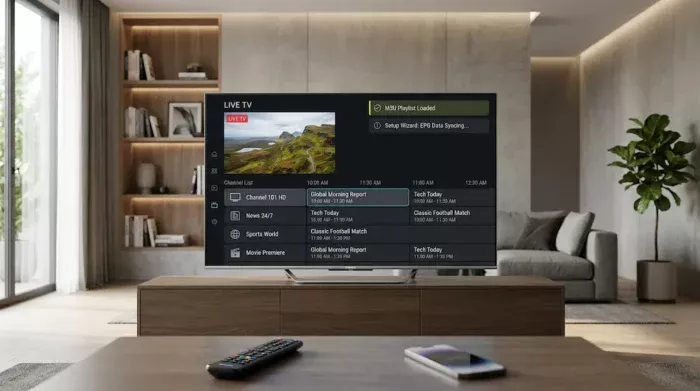
Hisense Smart TV IPTV setup depends mainly on the operating system installed on your television. Hisense models can use platforms such as VIDAA or Google TV, and the available apps and installation steps can vary by model and region.
This guide explains how to set up IPTV on a Hisense Smart TV, how to check which platform your TV uses, how to add an M3U playlist or Xtream Codes, how to configure EPG data, and what to do when an IPTV app or stream does not work.
Important: An IPTV app is only a player. You need a legitimate IPTV service or playlist to provide the channels and program data.
Before You Start: Check Your Hisense TV Platform
Before installing anything, check which operating system your Hisense TV uses. This is important because the available applications and installation methods can differ between VIDAA, Google TV and other platforms.
- Check the TV model number.
- Open the TV’s settings and look for the system or device information.
- Check whether the television uses VIDAA, Google TV or another platform.
- Open the built-in app store and search for compatible IPTV players.
- Make sure your TV has a stable internet connection.
If you are still comparing Hisense models, our Hisense TV 2026 guide explains the differences between VIDAA, Google TV, display technologies, apps and other important features.
What Do You Need to Use IPTV on a Hisense TV?
The exact requirements depend on the IPTV player you choose, but most setups require the following:
- A Hisense Smart TV with internet access
- A compatible IPTV player
- A legitimate IPTV playlist or service
- An M3U URL or Xtream Codes login, depending on the service
- An EPG/XMLTV URL if your service provides electronic program data
If you are new to IPTV, our IPTV guide explains the main playlist formats, players, EPG and device compatibility concepts.
How to Set Up IPTV on Hisense VIDAA
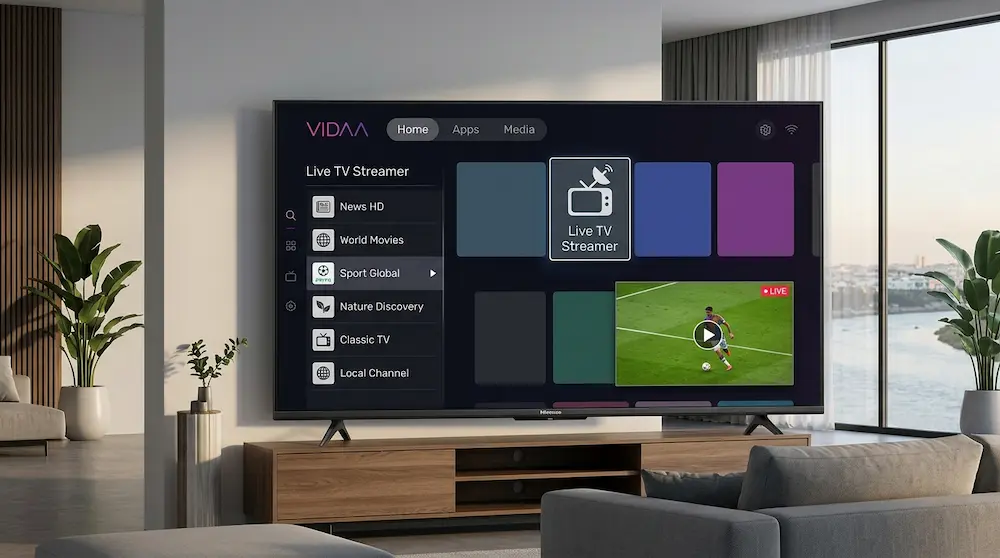
Hisense VIDAA TVs use their own smart-TV platform, so the available IPTV applications may differ from those found on Google TV or Android TV. App availability can also vary by television model, software version and region.
Step 1: Open the VIDAA App Store
From the Hisense home screen, open the Apps section or the TV’s application store. The exact menu names can vary depending on the VIDAA version and TV model.
Step 2: Search for an IPTV Player
Search the available app store for an IPTV player that supports your playlist format. Not every IPTV application available on Android or Google TV will necessarily be available on VIDAA.
Step 3: Install the Compatible App
If a compatible IPTV player is available, install it and open the application. Follow the player’s instructions for adding your IPTV service.
Step 4: Add Your IPTV Playlist
Depending on the application, you may be able to add your service using an M3U URL, Xtream Codes credentials or another supported login method.
If you are working with M3U and EPG data, our M3U to EPG converter can help you work with playlist and guide information.
How to Set Up IPTV on Hisense Google TV
Some Hisense televisions use Google TV, which provides access to the Google Play ecosystem. The exact application selection can still depend on the TV model and region.
Step 1: Open Google Play
From the Google TV home screen, open the Apps section and search for an IPTV player that supports your preferred playlist format.
Step 2: Install an IPTV Player
Select a compatible IPTV player and install it on the television. Always check the application’s supported formats before choosing it.
Step 3: Add Your IPTV Service
Open the player and choose the appropriate login method. Depending on the application, you may be asked for an M3U playlist URL, Xtream Codes information or another supported source.
Do not share your IPTV username, password or private playlist URL publicly. These details should remain private.
How to Add an M3U Playlist to a Hisense IPTV Player
M3U is one of the most common playlist formats used by IPTV players. An M3U playlist can contain channel names, stream URLs, logos and other metadata.
When your IPTV application supports M3U, the general process is:
- Open the IPTV player.
- Select the option for adding a playlist.
- Choose M3U URL or the equivalent option.
- Enter the playlist URL provided by your legitimate IPTV service.
- Save the playlist.
- Wait for the channels to load.
If the playlist does not load, check whether the URL is still valid and whether the IPTV player supports the format.
How to Use Xtream Codes on a Hisense TV
Some IPTV players allow you to connect using Xtream Codes instead of entering a complete M3U playlist URL. The application normally asks for a server address, username and password.
- Open your compatible IPTV player.
- Select Xtream Codes or a similarly named login option.
- Enter the server URL supplied by your IPTV provider.
- Enter your username.
- Enter your password.
- Save the connection and allow the player to load the available content.
The exact names of these fields depend on the IPTV application. If your player only accepts M3U URLs, you will need to use the playlist format supported by that application.
How to Add EPG to IPTV on Hisense
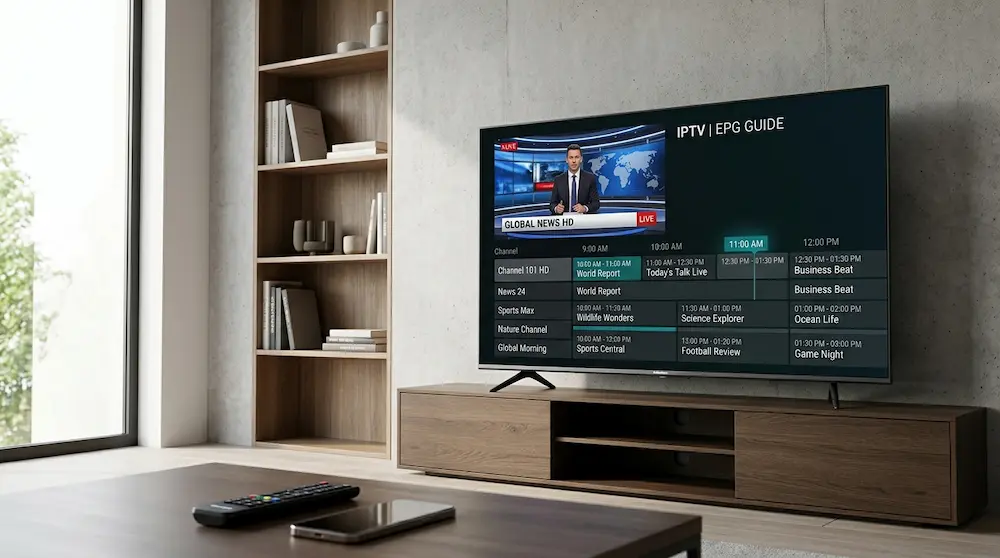
EPG, or Electronic Program Guide, provides program information such as the current show, upcoming programs, descriptions and schedules. Whether EPG works on your Hisense TV depends on both the IPTV player and the EPG source.
If your IPTV service provides an XMLTV or EPG URL, open the EPG settings inside your IPTV player and enter the supplied source according to the application’s instructions.
You can also explore our EPG TV XML sources directory for XMLTV-based guide sources and country-specific EPG information.
Why Is My EPG Not Showing?
If channels are working but the program guide is empty, the problem may not be the television itself. Common causes include an incorrect EPG URL, an incorrect channel ID mapping, expired guide data or an IPTV player that does not support the supplied format.
- Check that the EPG URL is correct.
- Refresh the EPG data inside the IPTV player.
- Check the channel’s EPG/tvg-id mapping.
- Make sure the EPG source covers your channels.
- Check whether the IPTV player supports XMLTV data.
Can You Install Any IPTV App on Hisense VIDAA?
No. You should not assume that every IPTV application available for Android TV or Google TV is also available on Hisense VIDAA.
Application availability can depend on the TV model, VIDAA version, region and available app store. If an application does not appear in the television’s supported app store, it may not be available for that particular TV configuration.
This is one of the most important differences to understand before buying a Hisense TV specifically for IPTV.
VIDAA vs Google TV for IPTV
Both platforms can provide a Smart TV experience, but they differ in their application ecosystems and available software.
| Feature | VIDAA | Google TV |
|---|---|---|
| App ecosystem | VIDAA app store and supported regional apps | Google TV app ecosystem |
| IPTV apps | Depends on model, region and available apps | Depends on app availability and compatibility |
| M3U support | Depends on the IPTV player | Depends on the IPTV player |
| EPG support | Depends on the IPTV player and source | Depends on the IPTV player and source |
| App flexibility | More dependent on the VIDAA ecosystem | Generally broader application ecosystem |
The important point is that IPTV compatibility is determined by the combination of the TV platform, IPTV application and playlist source, not simply by the Hisense brand name.
Why Is IPTV Not Working on My Hisense TV?
If an IPTV service is not working correctly, the TV may not always be the cause. Check the application, playlist, internet connection and individual stream URLs before changing your television settings.
| Problem | Possible cause | What to check |
|---|---|---|
| IPTV app is unavailable | Platform or regional limitation | Check the TV platform and app store |
| M3U playlist does not load | Invalid or unsupported playlist | Check the URL and player compatibility |
| Channels buffer | Network or stream issue | Test the connection and stream |
| EPG is empty | Incorrect EPG source or mapping | Check XMLTV URL and channel IDs |
| Some channels do not play | Individual stream problem | Test the affected stream separately |
| Player crashes | App or compatibility issue | Update or reinstall the application |
Check Your IPTV Streams
Before assuming that your Hisense TV is responsible, test the affected stream or playlist independently. Our IPTV Checker can help you check whether IPTV stream URLs are responding correctly.
Check M3U8 Streams
If your playlist contains M3U8 streams, you can also use our M3U8 Checker to test individual stream URLs.
What If Your Hisense TV Does Not Support the IPTV App You Want?
If your preferred IPTV player is not available on your Hisense TV, do not assume that the television is defective. The application may simply not support your operating system, model or region.
One option is to use another compatible IPTV application available on your TV platform. Another option is to use a supported external streaming device if you need an application that is not available on the built-in Smart TV system.
Before buying additional hardware, however, check whether your existing TV already supports the application or service you need.
How to Improve IPTV Playback on Hisense TV
Once your IPTV application is installed, playback quality will depend on several factors beyond the television itself.
- Use a stable internet connection.
- Prefer a wired connection when practical.
- Keep the TV and IPTV application updated.
- Avoid unnecessary background network activity.
- Test problematic streams individually.
- Check whether buffering affects one channel or the entire playlist.
If only one or two channels have problems while the rest of the playlist works normally, the issue is more likely to be related to those streams or their source than to the Hisense TV itself.
Hisense IPTV Setup: VIDAA or Google TV?
The best setup depends on the operating system and the IPTV application available for your particular model.
- Hisense VIDAA: Start by checking the built-in app store and the IPTV players available for your region.
- Hisense Google TV: Check compatible IPTV applications through the available Google TV app ecosystem.
- M3U users: Confirm that your chosen player accepts M3U URLs.
- EPG users: Check that the player supports the XMLTV/EPG source you plan to use.
- Unsupported app: Consider a compatible external streaming device rather than attempting to install unsupported software.
Frequently Asked Questions
Yes, but the available IPTV setup depends on the Hisense TV’s operating system, model, region and compatible applications. VIDAA and Google TV can have different app ecosystems.
IPTV availability on VIDAA depends on the applications supported by your particular TV and region. Check the built-in app store for compatible IPTV players before choosing a service or television model.
You can add an M3U URL when the IPTV player installed on your Hisense TV supports M3U playlists. The process is handled by the IPTV application rather than by the TV itself.
Yes, if the IPTV player supports EPG/XMLTV data and you have a compatible EPG source. If the guide does not appear, check the EPG URL, channel mapping and player compatibility.
The application may not be available for your specific VIDAA version, TV model or region. Check the built-in app store and the application’s official compatibility information.
Google TV generally provides access to a broader application ecosystem, but IPTV compatibility still depends on the specific player, TV model and region. VIDAA can also work well when the IPTV application you need is supported.
Final Thoughts
Setting up IPTV on a Hisense Smart TV is mainly a matter of matching the right IPTV player with the TV’s operating system. The process can be straightforward when a compatible application is available, but VIDAA and Google TV do not offer exactly the same app ecosystem.
Before buying a Hisense TV for IPTV, check the exact model, operating system, region and availability of the applications you plan to use. After installation, verify your M3U or Xtream Codes details, configure EPG if supported, and test problematic streams separately.
For more information about Hisense models, features and operating systems, see our Hisense TV 2026 guide. If your main priority is IPTV, you can also explore our EPG TV XML sources and IPTV testing tools.