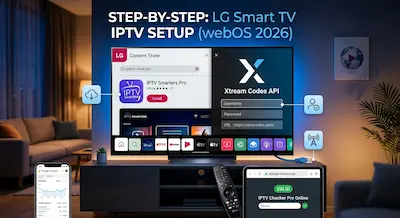
Do you own an LG Smart TV and want to enjoy your favorite channels in high definition? Thanks to the webOS system, setting up a streaming player has become extremely simple. Whether you are a complete beginner or an experienced cord-cutter, this guide explains exactly how to configure your service in just a few minutes.
(If you are entirely new to this technology, we recommend reading our comprehensive guide on What is IPTV? first).
1. Why Choose an LG Smart TV for IPTV?
LG televisions are renowned for their fluid interface and exceptional image quality, especially their OLED and NanoCell models. In fact, LG displays consistently dominate our rankings for the Best Smart TVs in 2026. By using a high-performance application, you can transform your living room into a true home theater with unlimited access to live sports, movies, and TV shows.
2. Step 1: Download the App from the LG Content Store
Unlike some other brands, LG directly offers many of the best streaming players in its official store.
- Turn on your TV and ensure it is connected to the internet.
- Press the Home button on your remote control to open the launch bar.
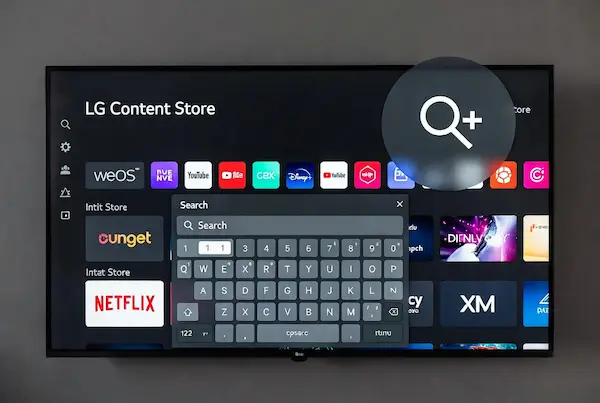
- Search for the LG Content Store icon.
- Click on the magnifying glass (Search) in the top right corner and type: « IPTV Smarters Pro ».
- Select the application and click Install.
⚠️ Important Note Regarding IPTV Smarters Pro:
Due to regional restrictions in 2026, IPTV Smarters Pro is frequently removed from the LG Content Store in certain countries. If you cannot find it in your store, do not worry! We highly recommend checking out our full setup guide for SmartOne IPTV, which is an incredibly stable, official alternative available worldwide on LG TVs.
3. Step 2: Configuration with Your IPTV Subscription
Once the application is installed, you need to connect it to your service provider. This is where the quality of your stream is determined.
- Open the newly installed application.
- Accept the terms of use.
- Choose the “Login with Xtream Codes API” option (this is the most stable and fastest method).
- Fill in the fields with the information provided by your subscription provider:
- Any Name: Give your playlist a name (e.g., “My IPTV”).
- Username: Your account identifier.
- Password: Your secret password.
- URL: The server address (e.g., http://servername.com:8000).
- Click on “Add User” and let the application load your channels and the TV Guide (EPG).
🛠️ Validate Your Playlist Now
Before updating your guide, check your stream health with our IPTV Checker Pro Online.4. App Comparison: Which Player is Best for LG?
If you are unsure which app to use on your webOS system, here is a quick comparison of the top choices in 2026:
| Feature / App | IPTV Smarters Pro | SmartOne IPTV | IBO Player Pro |
| Interface Style | Classic & Simple | Modern (Great for VOD) | Netflix-like |
| Setup Method | Xtream Codes API | MAC Address Upload | MAC Address Upload |
| LG Store Status | Variable (Often removed) | Highly Stable | Stable |
| Pricing | Free | 14-day trial, then paid | 7-day trial, then paid |
| Learn More | Current Article | Read SmartOne Guide | Coming Soon |
5. Tips to Avoid Buffering on LG TV
If your image freezes or stutters during a big match, here are the quickest technical fixes:
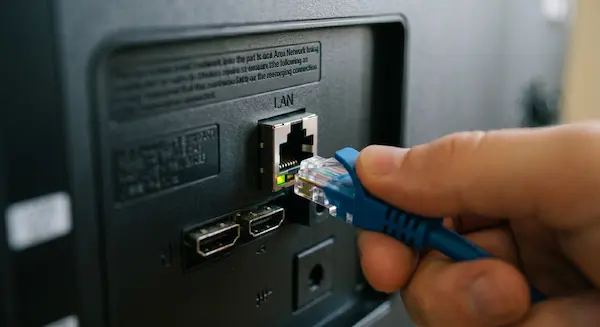
- Use an Ethernet Cable: Wi-Fi can be unstable, even on high-end TVs. A wired connection guarantees a constant, uninterrupted stream.
- Update webOS: Go to Settings > General > About this TV and verify that your system firmware is up to date.
- Use a VPN: If your Internet Service Provider (ISP) is throttling your connection during peak hours, using a VPN can instantly smooth out your streaming experience.
Frequently Asked Questions (FAQ)
No. LG’s webOS operating system is fully capable of running high-quality media players natively. You only need a Firestick or Android box if you prefer apps that are not available in the LG Content Store.
No. Applications like IPTV Smarters Pro and SmartOne IPTV are merely “empty media players.” You must purchase your own M3U playlist or Xtream Codes subscription from a third-party provider to watch content.
This usually means that the Username, Password, or Server URL you typed is incorrect. Double-check for typos, ensuring there are no accidental spaces at the end of your URL.
Conclusion
Installing an IPTV setup on an LG Smart TV is the ideal solution for centralizing all your entertainment. Whether you use IPTV Smarters Pro or a premium alternative like SmartOne, you are guaranteed a fluid service and an intuitive interface right from your factory remote.
Ready to begin? Install your preferred application from the LG store today and experience the future of television.