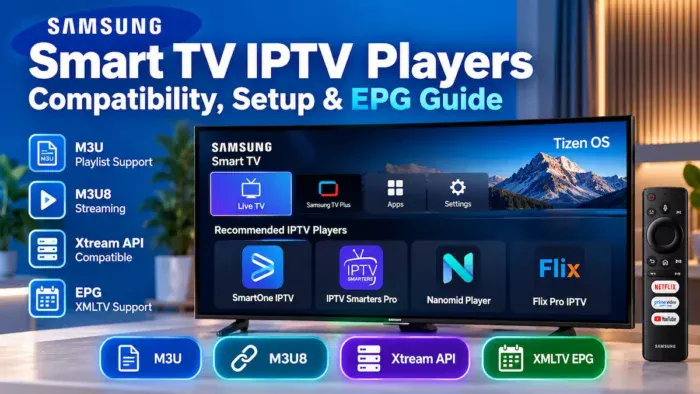
Short answer: A Samsung Smart TV can run an IPTV player only when a compatible player is available for that specific TV and region; IPTV is not one universal Samsung service or a guarantee that every playlist format will work. Check your TV’s Apps store before choosing a player, then use it only with streams you are authorized to access. A player is the viewing interface—it does not supply channels, subscriptions, or broadcasting rights.
What an IPTV player does on a Samsung TV
An IPTV player is software for organizing and playing internet-delivered television streams. Depending on the app, it may accept an M3U or M3U8 playlist, an Xtream-style account connection, and an EPG (electronic programme guide) supplied as XMLTV data. These are different ways of describing stream and schedule information; they are not themselves proof that a service is licensed.
Samsung’s TV platform uses Tizen, and Samsung’s developer documentation describes Smart TV applications as TV web applications built for its platform. In practice, viewers install consumer apps through the TV’s Apps area rather than treating a TV like a general-purpose computer. Start with the IPTV player guide hub if you are comparing players across devices; this page focuses on Samsung Smart TV compatibility.
Compatibility: verify your exact TV before you start
Do not assume that an IPTV app listed for another device can be installed on a Samsung TV. Catalogs and features vary by region, model, and software. Samsung notes that its app catalog varies by region and changes.
- Find the TV’s model code in its settings or on its product label, and note the country/region set for the TV’s Smart Hub.
- Press Home on the remote, open Apps (wording can differ), and search for the exact player name. Samsung’s support instructions describe installing apps from the Apps section or app search.
- Open the player’s listing and check its stated requirements, playlist types, and any limitations. Confirm that the app is installable on your TV—not merely shown in a search result for a different device.
- If it is absent, do not try unofficial downloads or change regions to bypass restrictions. Ask the app publisher or Samsung support about availability. A separate compatible streaming device is an alternative if its official store offers a player suited to your lawful service.
No single app, protocol, codec, or menu is guaranteed across Samsung models. Playback depends on the app, stream format, and TV. Check the app’s documentation and test an authorized source.
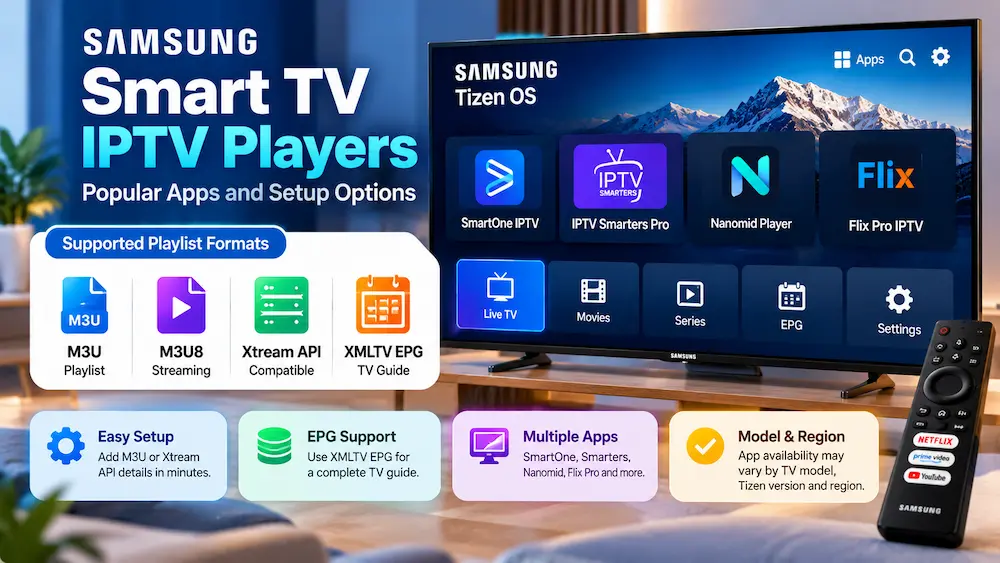
Examples of Popular IPTV Players on Samsung Tizen OS
While app availability depends on your region and Samsung TV model,
several well-known third-party IPTV players are frequently used on
Tizen OS. Remember that these are media players only — none of them
include channels or subscriptions.
- SmartOne IPTV: A feature-rich player popular on Samsung and LG TVs, supporting M3U playlists, Xtream API, and multi-playlist management via its
web portal.
- IPTV Smarters Pro: One of the widely used IPTV player interfaces, offering organized categories such as Live TV, Movies and Series, along with parental controls and EPG integration.
- Nanomid Player: Known for fast stream loading and a streamlined interface, allowing quick playlist setup through a QR code or online portal.
- Flix Pro IPTV (Flix IPTV): A modern, minimalist player supporting M3U/M3U8 URLs, Xtream credentials, and audio and subtitle track selection.
Popular IPTV Players for Samsung Smart TV Compared
| Player Name | Supported Inputs | EPG Support | Key Features | Pricing Model |
|---|---|---|---|---|
| SmartOne IPTV | M3U, M3U8, Xtream API | Yes | Multi-playlist management, clean navigation | Free trial / Paid activation license |
| IPTV Smarters Pro | M3U, Xtream API | Yes | Category layout (Live/VOD), parental controls | Free (optional premium features) |
| Nanomid Player | M3U, M3U8, Xtream API | Yes | Fast stream buffering, quick QR-code setup | Free trial / Paid activation license |
| Flix Pro IPTV | M3U, M3U8, Xtream API | Yes | Minimalist UI, track/subtitle switching | Free trial / Paid activation license |
Note: IPTV player availability and supported features
can vary by Samsung TV model, Tizen version, region and application
version. Always check the current app availability and supported input
methods before setting up a playlist.
Before setup: keep playlist details private
Obtain connection details directly from a legitimate broadcaster or service that has permission to distribute the content. Use only the options that your chosen player actually offers; menu names vary. An M3U URL or Xtream-style login can contain a username, password, or account token. Treat it like a password: do not paste it into public comments, screenshots, shared documents, or an untrusted “activation” website.
Have the TV connected to the internet and check that its date and time are correct. If you need to inspect a playlist before adding it, the site’s playlist checker can help identify basic formatting or reachability issues; it cannot certify that a stream is lawful or guarantee Samsung playback.
Setup: M3U or M3U8 playlist
Use this route only if the player lists M3U/M3U8 support. M3U is a playlist format, while M3U8 is commonly used for UTF-8 playlist text and may point to streaming media; a working URL alone does not establish rights to the content.
- Open the installed player and choose the playlist or M3U option. Some apps ask for a playlist URL; others may provide a separate account portal. Follow the app maker’s instructions.
- Enter or scan the authorized playlist URL carefully using the app’s private setup screen. Check for missing characters, extra spaces, or an expired link. Do not post the full URL when asking for help.
- If the app requests a playlist name, use a neutral label that does not expose account details. Save the entry and allow the player to load its channel list.
- Try one authorized channel first. If the list loads but video does not play, note the error and test the URL only with the provider’s approved tools or a private playlist validator.
Setup: Xtream-style connection
Some players provide fields described as Xtream, API, or portal login. This is distinct from importing an M3U URL, and not every app offers it. Obtain the precise server address and credentials from the authorized service; do not guess a portal or reuse details from an unknown source.
- In the player, select its Xtream-style or account-login option.
- Enter the server/portal address in the format supplied by the service, plus the assigned username and password. Avoid adding spaces or changing the address.
- Save the connection inside the app, then wait for channel and category data to load. If the connection fails, verify the details privately with the provider rather than sharing them in a support post.
An app may store these credentials on the TV or its own account system. Review the app’s privacy information and sign out or remove the profile before giving away or resetting the television.
Adding an EPG or XMLTV guide
An EPG is schedule metadata, not a channel source. If your player supports an XMLTV guide, request the guide URL or file from the same authorized service that supplies your streams, or use another source that has permission to provide its data. Some players match guide entries automatically; others require a channel identifier or mapping. Do not assume that an EPG address will work in every player.
- Open the player’s guide, EPG, or programme-guide settings and choose its XMLTV option if available.
- Enter the authorized XMLTV URL, or import a supported file by the method the app documents. Keep any token-bearing URL private.
- Refresh or reload guide data, then check whether programme names and times align with the correct channels. Correct mismatches using the player’s mapping controls, if offered.
- If you need a permitted guide source, browse the EPG/XMLTV directory. A playlist-to-guide mapping may need preparation; the M3U-to-EPG converter is a utility, not a source of programme rights or channel listings.
Troubleshooting common Samsung TV player problems
The player does not appear in Apps
Check the TV’s region, model code, internet connection, and exact app name; availability can differ. If the app is not offered in the TV’s catalog, contact the publisher or use a supported external device. Avoid unofficial installation files or instructions that ask you to disable security safeguards.
The playlist will not load or channels are missing
Recheck the URL privately, confirm it has not expired, and make sure the player accepts that playlist type. Test whether the same authorized source is currently reachable using the service’s own support channel. If only certain entries fail, the stream may be unavailable or incompatible; the TV’s network or the source format can also matter.
Video buffers, has no sound, or stops
Restart the TV and router, check the connection, and try another permitted stream. If one source fails across devices, ask its provider; if all apps have trouble, follow Samsung’s general app troubleshooting steps. Do not interpret buffering as proof that a particular speed threshold or TV upgrade is needed.
The guide is blank or has the wrong times
Refresh XMLTV data, check the guide URL’s validity, confirm the TV’s date/time and time zone, and review channel matching in the player. A guide can be stale, incomplete, or mapped to a different channel identifier even while video works.
Samsung support recommends a software restart, checking for TV software updates, reinstalling a faulty app where available, and—if needed—resetting Smart Hub. Menu names vary by model; a Smart Hub reset can remove apps and stored account details, so keep login information safe first.
Legal and safety note
IPTV technology is a delivery method, not a licence. Use only subscriptions, streams, and programme guides that you are entitled to access and that are offered with the relevant rights. We do not provide channels, credentials, provider recommendations, or instructions for bypassing access controls. Be cautious of apps or websites promising every paid channel for free, asking you to disclose credentials, or directing you to install software outside Samsung’s official app process.
Frequently asked questions
Is there one IPTV player built into every Samsung Smart TV?
No. Samsung’s Smart TV platform has an Apps catalog, but a particular IPTV player is not guaranteed on every model or in every region. Search the TV’s own Apps area and verify the listing for your television.
Can I use an M3U playlist on a Samsung TV?
Only if a compatible player available for your TV supports M3U or M3U8 input. Follow that app’s instructions and use a playlist from an authorized source; Samsung TV support does not imply that every playlist or stream format will play.
Can I enter Xtream-style details and XMLTV on the same TV?
Potentially, if the installed player supports those options. Xtream-style connection fields provide account access, while XMLTV is guide data; availability, setup screens, and channel matching depend on the app and service.
Why can’t I find the player in the Samsung Apps store?
It may not be published for your TV model or region, or the app’s requirements may exclude that device. Check the exact model and local app catalog, then ask the publisher or Samsung support. Do not use unofficial downloads to work around availability.
Does installing a player give me access to live channels?
No. A player is an interface for compatible streams; it does not include a lawful subscription or grant rights to content. You must provide an authorized playlist or account yourself.