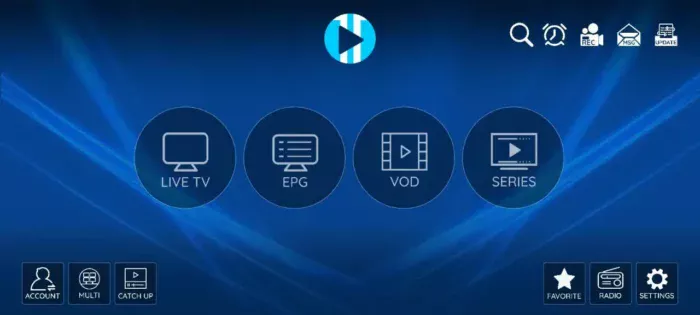
XCIPTV Player is a popular media player for Android users who want a simple way to organize and play live TV streams, movies, series, and electronic program guide (EPG) data from a compatible source.
If you have installed XCIPTV but are unsure what to enter on the login screen, this guide walks you through the complete setup process on an Android phone, tablet, or Android TV device.
You will learn how to install XCIPTV Player, log in using Xtream Codes-compatible credentials or an M3U playlist, load EPG information, configure the built-in player, and troubleshoot common login and playback problems.
All screenshots in this guide were captured from XCIPTV Player on Android to show the actual setup process and interface.
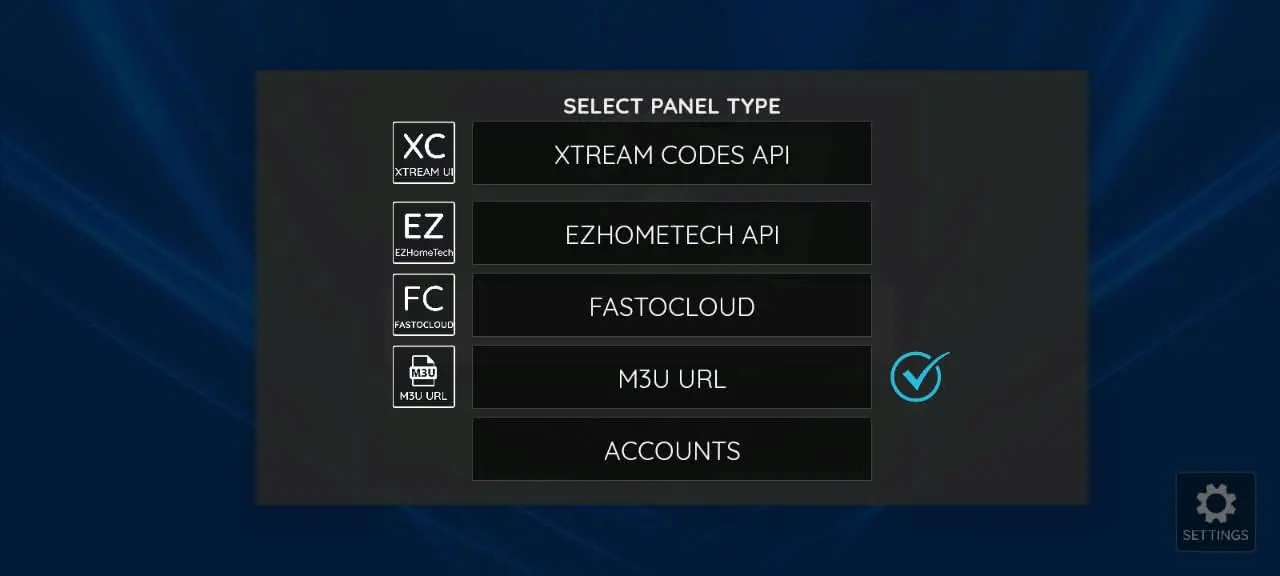
Important: XCIPTV Player is a media player, not a TV or IPTV content provider. The official app does not include channels, subscriptions, playlists, movies, or other media. You must provide your own authorized content or access credentials.
Quick Answer: How Do You Set Up XCIPTV on Android?
To set up XCIPTV Player on Android, install the official app from Google Play, choose a supported connection method such as Xtream Codes-compatible API or M3U URL, enter the credentials or playlist provided by your authorized source, and then load the playlist and EPG. If the connection fails, check the server, credentials, playlist, and EPG separately.
What Is XCIPTV Player?
XCIPTV Player is an Android media player developed for Android phones, tablets, and Android TV devices.
Unlike a traditional streaming service, XCIPTV does not maintain its own catalog of television channels or movies. Instead, it acts as an interface between your Android device and a compatible media source.
Depending on your source, XCIPTV can organize content into sections such as:
- Live TV
- TV Guide / EPG
- Movies or VOD
- Series
- Favorites
- Catch-up, when supported by the source
The official application includes built-in media players based on ExoPlayer and VLC, so users generally do not need to install a separate video player.
XCIPTV also supports EPG information through Xtream Codes-compatible APIs and M3U-based configurations, making it useful when your playlist contains proper channel IDs and TV guide metadata.
XCIPTV Player at a Glance
| Feature | Support |
|---|---|
| Android Phone | ✅ |
| Android Tablet | ✅ |
| Android TV | ✅ |
| M3U | ✅ |
| Xtream Codes-compatible API | ✅ |
| EPG | ✅ |
| VOD | ✅ |
| Series | ✅ |
| Favorites | ✅ |
| Catch-up | ✅ |
| Built-in Player | ✅ |
What You Need Before Setting Up XCIPTV
Before opening the app, make sure you have a compatible Android device and the information required to access your media source.
Depending on the setup, you may need one of the following:
Xtream Codes-compatible login
- Server or Portal URL
- Username
- Password
Or:
M3U playlist
- M3U/M3U8 playlist URL
- EPG/XMLTV URL, if it is provided separately
The exact information depends on the service or media server you are authorized to use.
Do not guess the server address or credentials. A single incorrect character in the URL, username, or password can prevent XCIPTV from connecting.
How to Install XCIPTV Player on Android
The easiest method is to install the official XCIPTV Player application through Google Play.
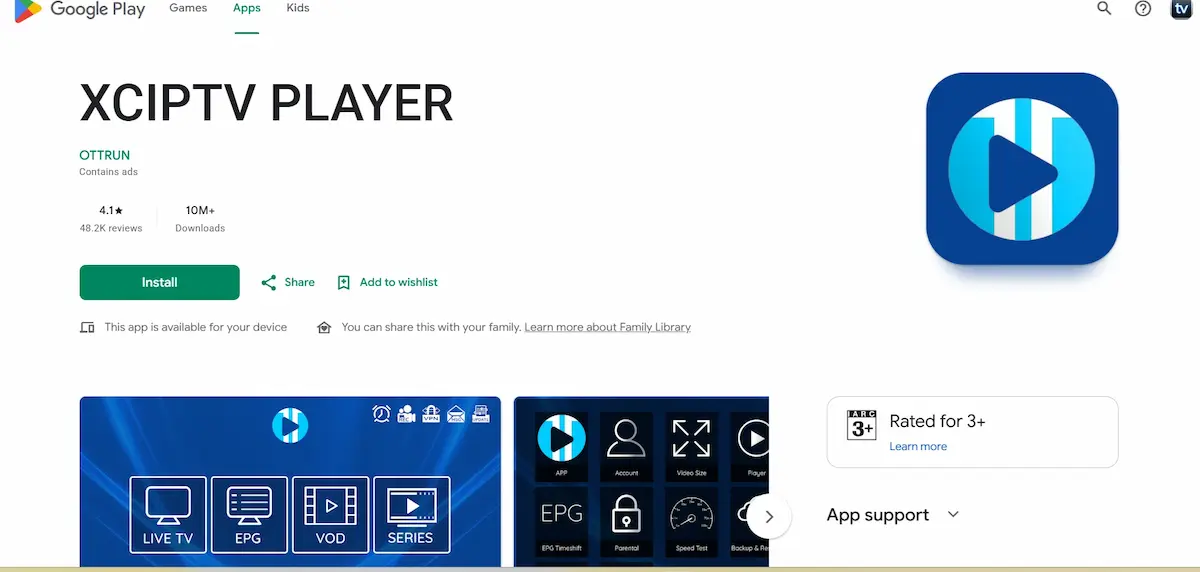
Step 1: Open Google Play Store
Open the Google Play Store on your Android phone, tablet, or compatible Android TV device.
Step 2: Search for XCIPTV PLAYER
Search for:
XCIPTV PLAYER
Check the app information before installing it to avoid confusing the official application with similarly named apps.
Step 3: Install the App
Tap Install and wait for Android to finish downloading and installing XCIPTV.
Step 4: Open XCIPTV
Launch the application.
Depending on the current version and device, XCIPTV may request permissions required for certain features. Review each permission before allowing it.
You should then reach the setup or login interface.
How to Login to XCIPTV Player Using Xtream Codes
For many users, a Xtream Codes-compatible API is the simplest login method because you normally only need three important pieces of information:
Username + Password + Server URL
The exact wording of the options may vary slightly depending on your XCIPTV version.
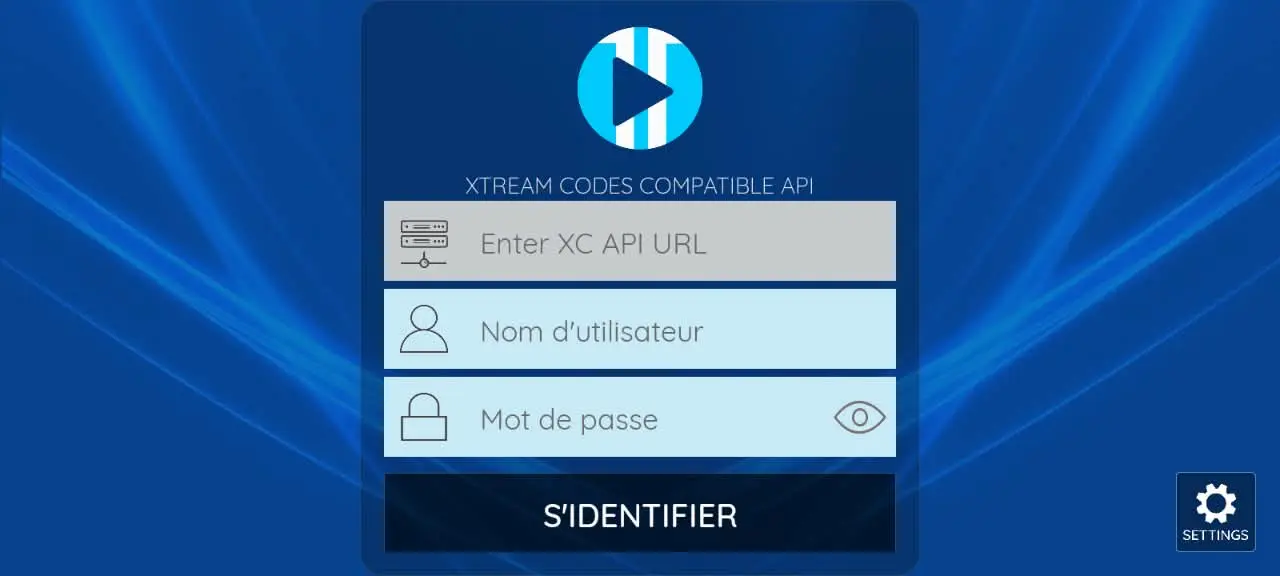
Step 1: Select the Xtream Codes Login Option
Open XCIPTV and select the option for an Xtream Codes-compatible API or the corresponding login option displayed by your version of the app.
Step 2: Enter a Playlist Name (If Requested)
If XCIPTV asks you to create a name for the profile or playlist, you can choose any descriptive name.
For example:
Home TV
or:
My Playlist
This name is simply there to help you identify the connection.
Step 3: Enter Your Username
Enter the username associated with your authorized media source.
For example:
exampleuser123
Use the actual username you received rather than this example.
Step 4: Enter Your Password
Enter your password exactly as provided.
Passwords can be case-sensitive, so pay attention to uppercase and lowercase letters.
Also check for accidental spaces when copying and pasting credentials.
Step 5: Enter the Server URL
Your server or portal address may look similar to:
http://example.com:8080
or:
These addresses are examples only.
Enter the complete server URL provided for your account, including the correct protocol (http:// or https://) and port number when one is required.
Step 6: Sign In
After checking all three fields, select Sign In, Login, or the equivalent button.
XCIPTV will attempt to connect to the server and retrieve the information associated with your account.
Depending on the size of the playlist and EPG database, the initial synchronization can take some time.
Once completed, available sections may include Live TV, Movies, Series, Catch-up, and TV Guide.
The actual sections depend entirely on the data supplied by your source.
How to Add an M3U Playlist to XCIPTV
XCIPTV also supports M3U-based configurations.
This is useful when you have a playlist URL rather than separate Xtream Codes-compatible login credentials.
An M3U URL might resemble:
https://example.com/playlist.m3u
This is only an example and will not provide content.
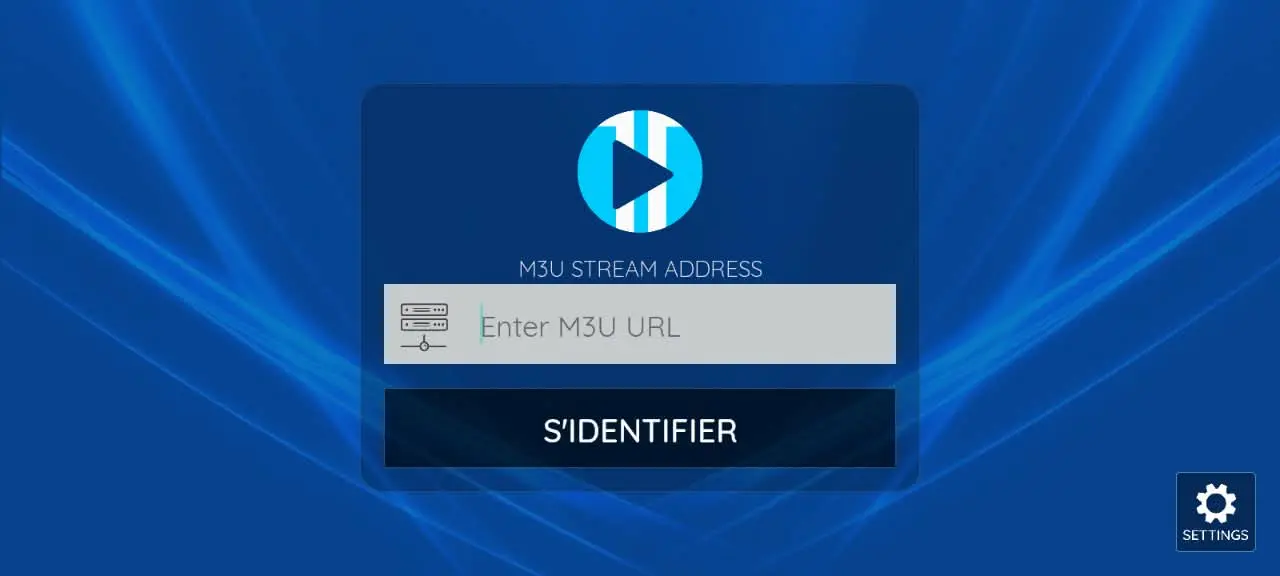
Open XCIPTV and locate the option for adding an M3U playlist or URL.
Enter your playlist name and paste the complete M3U URL into the appropriate field.
If your configuration includes a separate EPG URL, you may also need to add it.
An XMLTV EPG URL might resemble:
https://example.com/epg.xml
Again, this is an example rather than a working TV guide.
Save the configuration and allow XCIPTV to download and process the playlist.
Xtream Codes vs M3U: Which Login Method Should You Use?
Both methods can provide access to the same authorized media source, but they organize connection information differently.
An M3U URL often contains much of the connection information inside one long URL.
A Xtream Codes-compatible login, by comparison, separates the connection into:
- Server URL
- Username
- Password
For users entering information manually with a TV remote, separate login fields can sometimes be easier to manage.
M3U remains useful because it is a widely supported playlist format and can also be processed by playlist editors, validators, and other M3U tools.
If your source provides both formats, either may work. Follow the format recommended for your particular configuration.
How to Set Up EPG in XCIPTV Player
EPG stands for Electronic Program Guide.
It provides program information such as:
- Program title
- Start time
- End time
- Current program
- Upcoming programs
- Channel schedule
XCIPTV officially supports EPG with compatible Xtream Codes API and M3U configurations.
EPG With Xtream Codes
When using a properly configured Xtream Codes-compatible source, EPG information may be retrieved automatically.
After logging in, allow XCIPTV enough time to download the initial TV guide data.
Then open:
Live TV → TV Guide / EPG
The wording may vary by app version.
EPG With an M3U Playlist
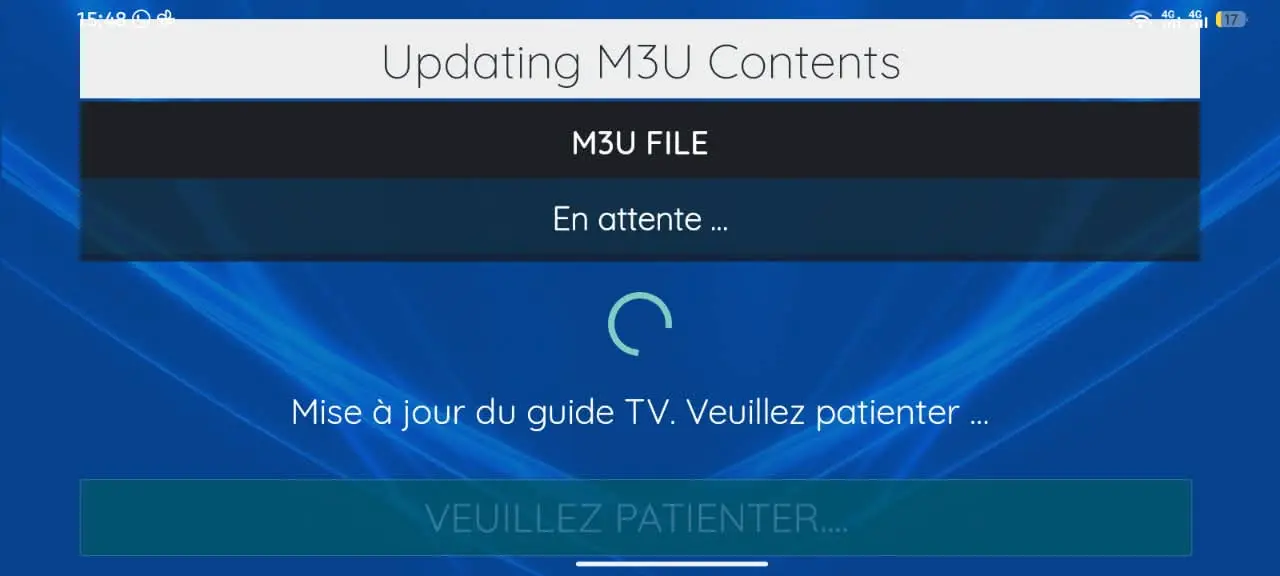
With M3U, the TV guide may be provided through a separate XMLTV source.
For example:
https://example.com/guide.xml
Some sources use compressed XMLTV files such as:
guide.xml.gz
Whether a particular EPG source works correctly depends on the format and configuration supported by the app and the source.
Why Does XCIPTV Show Channels but No EPG?
This is one of the most common IPTV-player configuration problems.
A working stream does not automatically guarantee a working EPG.
The player must be able to associate a channel in the M3U playlist with the corresponding channel in the XMLTV file.
A typical M3U entry can contain an identifier such as:
#EXTINF:-1 tvg-id="example.channel",Example Channel
The XMLTV file should contain a corresponding channel identifier.
For example:
<channel id="example.channel">
When the identifiers match correctly, the player has a way to associate program listings with that channel.
If they do not match, the video stream may work perfectly while the TV guide remains empty.
Therefore, when troubleshooting EPG problems, check:
M3U tvg-id → XMLTV channel ID → Program data
This relationship is one of the most important concepts to understand when working with IPTV playlists and XMLTV EPG files.
How to Refresh EPG Data in XCIPTV
If your TV guide is empty or outdated, first check whether XCIPTV provides an EPG refresh/update option in your installed version.
You can also try restarting the application after updating the guide.
If the problem remains, verify that:
- The EPG URL is accessible.
- The XML/XMLTV file is valid.
- Channel IDs are correctly mapped.
- The source actually contains current program information.
- Your device has an active internet connection.
If you manage your own XMLTV files, validating the file before importing it can help identify malformed XML, missing channels, incorrect timestamps, or mapping problems.
Using Live TV in XCIPTV
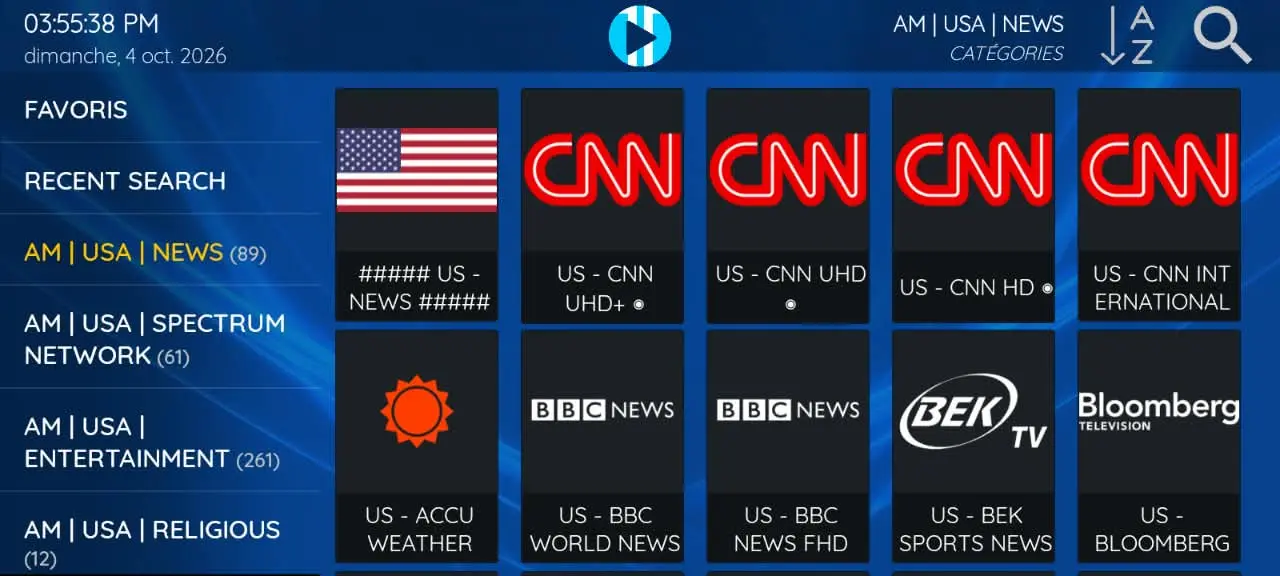
Once the playlist has loaded, open the Live TV section.
The available channels are normally grouped according to categories defined by your source.
Select a category, choose a channel, and XCIPTV will send the stream to its built-in playback engine.
You can also add frequently used channels to Favorites for quicker access later.
The official XCIPTV app includes both ExoPlayer and VLC-based playback support.
If a stream does not play correctly with one playback engine, testing the other can sometimes help determine whether the issue is related to playback compatibility rather than the source itself.
How to Use the TV Guide
Open the EPG or TV Guide section to view the schedule.
When properly configured, the interface can display channels alongside their current and upcoming programs.
EPG functionality is especially useful for live television because you can see what is currently playing without opening every channel individually.
XCIPTV also supports program reminders and scheduled recording features from the EPG interface, although availability and behavior can depend on the device, permissions, storage, source, and app version.
Movies and Series
If your authorized source includes VOD or series data, XCIPTV may display separate Movies and Series sections.
Series can be organized into seasons and episodes, while compatible VOD information can include additional metadata.
Remember that XCIPTV only displays information supplied by the configured source. Installing the application itself does not unlock a movie or television catalog.
How to Add Channels to Favorites
If you have a large playlist, Favorites can make navigation much easier.
Open the channel you want to save and use the available Favorite option.
The channel should then appear in the Favorites section.
This is especially useful with playlists containing hundreds or thousands of entries because you do not need to search the complete channel list each time you open the app.
Best XCIPTV Settings for Android
There is no single configuration that is best for every Android device or every stream.
However, several settings are worth checking.
1. Playback Engine
XCIPTV includes built-in playback engines.
If you experience playback problems, compare the available players.
A stream failing in one engine but working in another can indicate a codec, container, or playback compatibility issue.
2. EPG Update Settings
Keep your EPG reasonably current.
Downloading an unnecessarily large number of guide days can increase processing time and storage usage, particularly on lower-powered Android TV boxes.
3. Favorites
Create a smaller Favorites list for the channels you actually use.
This can make a very large playlist easier to navigate.
4. Storage
Recording features require sufficient available storage.
Long live-TV recordings can consume substantial space, so check internal or external storage before scheduling recordings.
XCIPTV Login Not Working? Try These Fixes
A login error does not necessarily mean XCIPTV itself is broken.
Several different problems can produce similar symptoms.
1. Check the Server URL
Verify the complete address.
For example, these are not necessarily interchangeable:
http://example.com
http://example.com:8080
The protocol and port must match the actual server configuration.
2. Check Username and Password
Make sure there are no extra spaces before or after the credentials.
If you copied the information from an email or messaging app, re-entering it manually can sometimes eliminate hidden formatting errors.
3. Test Your Internet Connection
Open another website or streaming application on the same Android device.
If other services are also unavailable, the problem may be the network rather than XCIPTV.
4. Check Whether the Source Is Available
A correctly configured player cannot connect when the remote server is unavailable.
If the credentials previously worked and suddenly fail on multiple compatible players, check the status of your source.
Is Your IPTV Server Online?
If XCIPTV cannot connect to your source, use our IPTV Checker to test the server or stream URL and determine whether the problem is with the source or your player.
Check IPTV Source →5. Update XCIPTV
Use the current official version available for your device.
Updates can include compatibility improvements and bug fixes.
6. Restart the App
Completely close XCIPTV and reopen it.
You can also restart the Android device if necessary.
7. Clear Cache Carefully
On Android, you can generally find application controls under:
Settings → Apps → XCIPTV PLAYER → Storage
Clearing the cache can help with some temporary problems.
Be more careful with Clear Data / Clear Storage, because it can remove saved application information and require you to configure the app again.
XCIPTV Buffering: What Causes It?
Buffering can have several causes, and changing players does not always solve the underlying problem.
Possible causes include:
- Slow or unstable internet
- Wi-Fi interference
- Overloaded remote server
- High-bitrate stream
- Device performance limitations
- Playback compatibility issues
- Network congestion
Start by checking your connection on the same device.
If possible, compare Wi-Fi with Ethernet on an Android TV box or television.
You can also test another authorized stream from the same playlist. If one channel buffers while other channels work normally, the problem may be specific to that stream rather than your entire connection.
XCIPTV Says “Authorization Failed”
An authorization or login failure usually points to the connection information.
Recheck:
- Username
- Password
- Server URL
- Port number
- HTTP vs HTTPS
- Account/source status
If the same credentials fail in another compatible player, the problem is unlikely to be specific to XCIPTV.
Playlist Loads but No Channels Appear
If XCIPTV accepts the login but displays no channels, the connection may have succeeded while the returned playlist data is empty or invalid.
Try refreshing the content.
For an M3U setup, verify that the playlist actually contains valid #EXTINF entries and stream URLs.
A playlist analyzer or M3U validator can be useful here because it allows you to inspect the playlist structure before assuming the media player is responsible.
EPG Is Showing the Wrong Time
An EPG that works but displays programs one or two hours early or late usually points to a time or timezone issue rather than channel mapping.
Check:
- Android device timezone
- Automatic date and time
- XMLTV timestamps
- Timezone information in the EPG
- Any EPG offset/time-shift setting available in your setup
Do not manually shift the EPG until you have verified the device timezone first.
Otherwise, you may hide the actual cause of the problem.
XCIPTV vs Other Android IPTV Players
XCIPTV is one of several Android applications capable of handling M3U playlists and IPTV-style media sources.
Its main advantage is that many important functions are available within one interface, including live TV playback, EPG integration, VOD organization, favorites, catch-up support, and recording-related features.
However, the best player depends on your device and your requirements.
For example, users may compare XCIPTV with applications such as TiviMate or IPTV Smarters when choosing an interface for Android TV.
The important point is that these applications are players. Changing the player will not repair an invalid M3U playlist, incorrect credentials, a broken stream URL, or missing XMLTV data.
Frequently Asked Questions
XCIPTV Player is available on Google Play and the current listing is marked as containing ads. Availability, features, and any commercial terms can change over time.
Always check the current official listing because application pricing, features, availability, and policies can change over time.
No.
XCIPTV Player does not provide TV channels, IPTV subscriptions, movies, or other media.
The official app description explicitly states that users must provide their own content and that XCIPTV is not affiliated with media content suppliers.
This distinction is important:
XCIPTV Player = Media Player
M3U / Xtream-compatible source = Content configuration
XMLTV = EPG / TV Guide data
The player simply brings these components together in one interface.
XCIPTV itself is a media-player application.
Like other general-purpose media players, legality depends on the content you access and whether you have permission to use it.
Use XCIPTV only with streams, playlists, and media that you own or are legally authorized to access.
The official XCIPTV listing also states that it does not endorse streaming copyrighted material without permission from the copyright holder.
Yes. XCIPTV is designed for Android phones as well as Android tablets and Android TV devices.
Yes. The official application supports Android TV and is designed for navigation with a TV remote and D-pad.
Yes. The official app supports EPG for compatible Xtream Codes API and M3U configurations.
The most common causes include missing EPG data, an inaccessible XMLTV source, or incorrect mapping between the M3U tvg-id and XMLTV channel ID.
Buffering may be caused by your internet connection, Wi-Fi quality, stream bitrate, remote server performance, network congestion, or playback compatibility. Test the network and several streams before changing settings.
XCIPTV can display compatible EPG data, but it cannot invent missing program schedules. Your configured source must provide suitable guide information.
Final Thoughts
XCIPTV Player offers Android users a convenient way to manage compatible live TV streams, M3U playlists, Xtream Codes-compatible logins, VOD libraries, and XMLTV EPG information from a single interface.
For most users, setup is straightforward:
Install XCIPTV → Add your authorized M3U or Xtream-compatible source → Load the playlist → Update EPG → Start watching.
If XCIPTV connects but something does not work, identify the affected component before changing random settings.
Ask yourself:
Can the app connect to the server?
Does the playlist contain valid channels?
Do the streams actually respond?
Does the EPG contain matching channel IDs?
Is the Android device using the correct timezone?
Separating the player, playlist, stream, and EPG into these components makes most XCIPTV problems much easier to diagnose.
And remember: XCIPTV Player itself does not provide channels or subscriptions. Use it only with media and streaming sources you have the legal right to access.