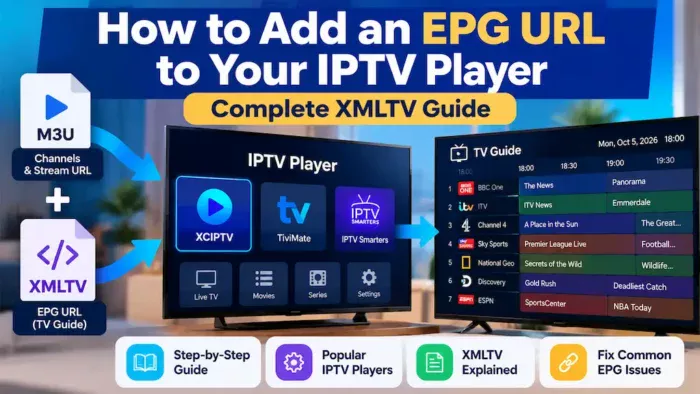
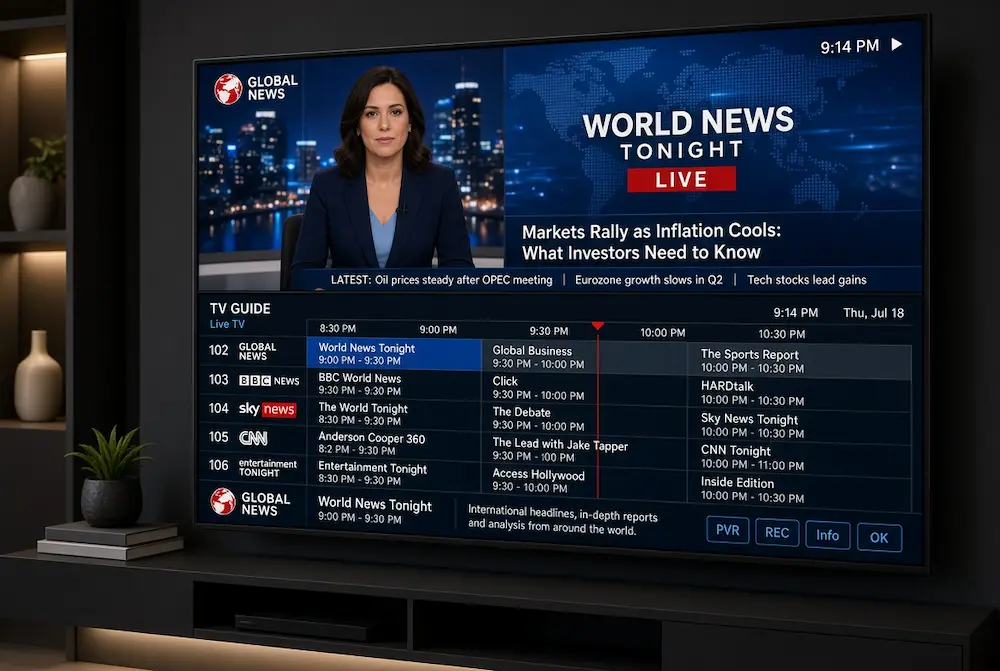
If your IPTV playlist loads correctly but the TV guide is empty, incomplete, or showing the wrong programs, the problem may not be your IPTV playlist itself. In many cases, the missing part is the EPG (Electronic Program Guide).
An EPG URL provides your IPTV player with program information such as channel names, program titles, descriptions, start times, and end times. One of the most common formats used for IPTV EPG data is XMLTV.
The important thing to understand is that an M3U playlist and an EPG source perform different jobs:
- M3U tells the player where the streams are.
- EPG/XMLTV tells the player what programs are scheduled on those channels.
- Many IPTV players use channel identifiers such as
tvg-idto associate M3U channels with XMLTV data. The exact matching behavior can vary between applications.
This guide explains how EPG URLs work, how to add one to popular IPTV players, how XMLTV channel matching works, and what to do when your EPG does not appear.
Quick Answer: How Do You Add an EPG URL to IPTV??
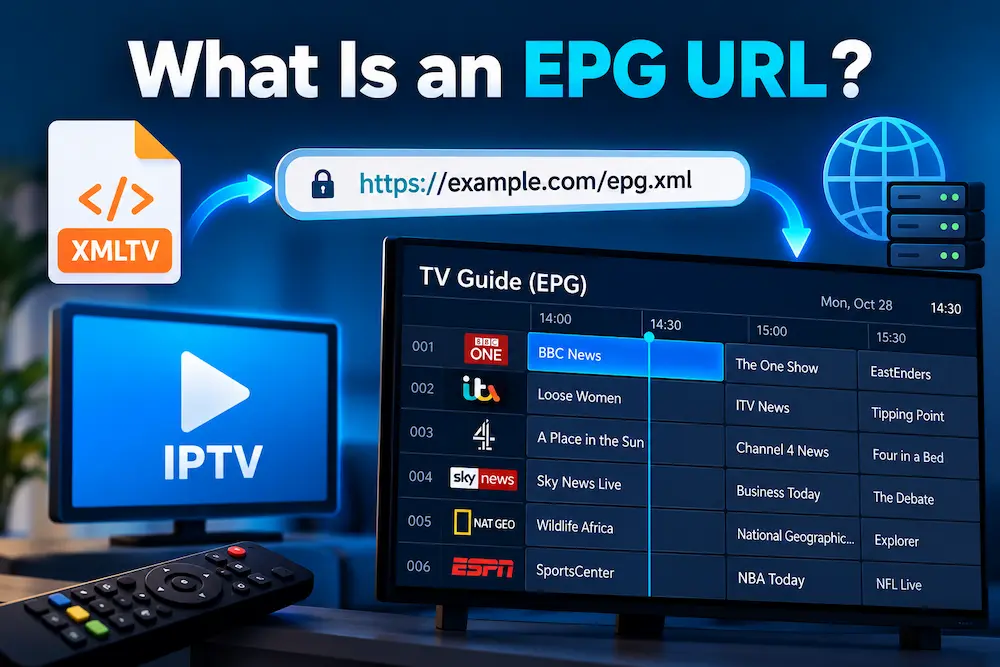
An EPG URL is a web address that points to an electronic program guide file, usually in XMLTV format.
For example, an IPTV player may retrieve an XMLTV file from a URL such as:
https://example.com/epg.xmlor a compressed XMLTV source:
https://example.com/epg.xml.gzThe file contains channel information and scheduled programs.
A simplified XMLTV structure looks like this:
<channel id="channel.example">
    <display-name>Example TV</display-name>
</channel>

<programme
    start="20261005180000 +0000"
    stop="20261005190000 +0000"
    channel="channel.example">

    <title>Evening News</title>
    <desc>Latest news and headlines.</desc>

</programme>
In XMLTV, the programme element references the channel through its channel attribute, while the channel itself has an id.
What Is XMLTV?
XMLTV is a format used to represent television listings in XML.
An XMLTV file can contain:
- Channel IDs
- Channel names
- Channel logos
- Program titles
- Program descriptions
- Start times
- End times
- Categories
- Episode information
- Ratings
- Other program metadata
The XMLTV specification defines channel elements and programme elements, with each program referencing a channel. wiki.xmltv.org
This is why you will often see IPTV websites describing their EPG sources as:
XMLTV EPG
or:
XMLTV EPG URL
They are usually referring to a URL from which the IPTV player can retrieve an XMLTV guide.
M3U vs EPG URL: What Is the Difference?
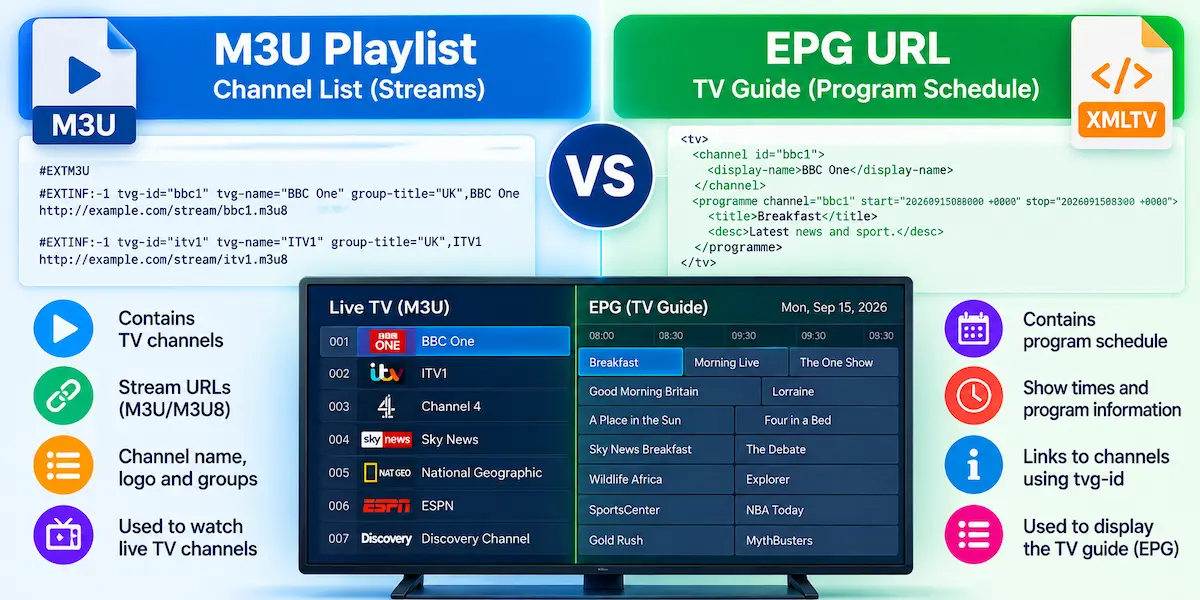
One of the most common IPTV configuration mistakes is assuming that the M3U URL and EPG URL are the same thing.
They are not.
| Feature | M3U Playlist | EPG / XMLTV |
|---|---|---|
| Live stream URL | Yes | No |
| Channel name | Yes | Yes |
| Channel ID | Often | Yes |
| TV program schedule | No | Yes |
| Program description | Usually no | Yes |
| Program start/end time | No | Yes |
| Channel logo | Sometimes | Can be included |
| Used for TV Guide | No | Yes |
Think of it this way:
M3U Playlist
     │
     ├── Channel name
     ├── Stream URL
     ├── tvg-id
     └── Logo

              +

XMLTV EPG
     │
     ├── Channel ID
     ├── Program title
     ├── Description
     ├── Start time
     └── End time

              ↓

        IPTV Player
              ↓
          TV Guide
The M3U provides the channel/stream information, while XMLTV provides the program schedule.
IPTV EPG Tool
M3U to EPG Converter
Have an M3U or Xtream-style playlist URL but don’t know which EPG URL to use? Our M3U to EPG Converter can analyze compatible playlist URLs and help identify the corresponding EPG source.
Example M3U URL
<code style="display:block;overflow-x:auto;color:#183b56;font-size:13px;line-height:1.6;">
  http://example.com/get.php?username=xxxxx&password=xxxx&type=m3u
</code>
The tool uses the playlist URL to determine the appropriate EPG source, so you can use the resulting EPG URL in a compatible IPTV player or TV Guide.
M3U to EPG Converter
Have an M3U or Xtream-style playlist URL but don’t know which EPG URL to use? Our M3U to EPG Converter can analyze compatible playlist URLs and help identify the corresponding EPG source.
http://example.com/get.php?username=xxxxx&password=xxxx&type=m3u
The tool uses the playlist URL to determine the appropriate EPG source, so you can use the resulting EPG URL in a compatible IPTV player or TV Guide.
Open M3U to EPG Converter →How Does an EPG URL Work With an M3U Playlist?
This is where channel matching becomes important.
Consider this simplified M3U entry:
#EXTINF:-1 tvg-id="channel.example" tvg-name="Example TV",Example TV
https://example.com/live/channel.m3u8
The playlist contains:
tvg-id="channel.example"
The XMLTV file might contain:
<channel id="channel.example">
    <display-name>Example TV</display-name>
</channel>
The IPTV player can use the matching identifier to associate the stream with the correct program schedule.
The XMLTV specification defines the channel id and the channel attribute used by programme entries. GitHub
This is why tvg-id matters
If the M3U contains:
tvg-id="channel.example"but the EPG contains:
<channel id="different-channel">the player may not be able to associate the guide with that stream automatically.
The result can be:
Channel works, but EPG is missing.
How to Add an EPG URL to an IPTV Player
The exact procedure depends on the IPTV player you use.
Most players follow the same basic process:
Open IPTV Player
        ↓
Open Settings
        ↓
Find EPG / TV Guide
        ↓
Add EPG Source
        ↓
Enter XMLTV URL
        ↓
Save
        ↓
Update / Refresh EPG
        ↓
Match channels
Before adding an EPG URL, make sure you have a legitimate EPG source that you are authorized to use.
How to Add an EPG URL to XCIPTV
XCIPTV supports EPG functionality with supported connection methods, including Xtream Codes-compatible API and M3U URL setups. The current Google Play listing also describes EPG support and Catch-up with EPG.
Google Play
If you are using XCIPTV, first make sure your playlist is correctly configured.
Then:
Step 1: Open XCIPTV
Launch the application on your compatible Android phone, tablet, or Android TV device.
Step 2: Open the EPG or TV Guide settings
Depending on the version and configuration, EPG settings may be associated with the playlist or TV Guide configuration.
Step 3: Add your EPG source
Enter the XMLTV EPG URL supplied by your authorized source.
For example:
https://example.com/epg.xmlStep 4: Save the EPG source
Save the configuration and allow XCIPTV to retrieve the guide.
Step 5: Update the TV Guide
Give the application enough time to download and process the XMLTV data.
Step 6: Check the channels
Open the TV Guide and check whether program information appears for your channels.
If you are still configuring XCIPTV from the beginning, see our complete guide:
How to Use XCIPTV Player on Android | Complete Setup & Login Guide
How to Add an EPG URL to TiviMate
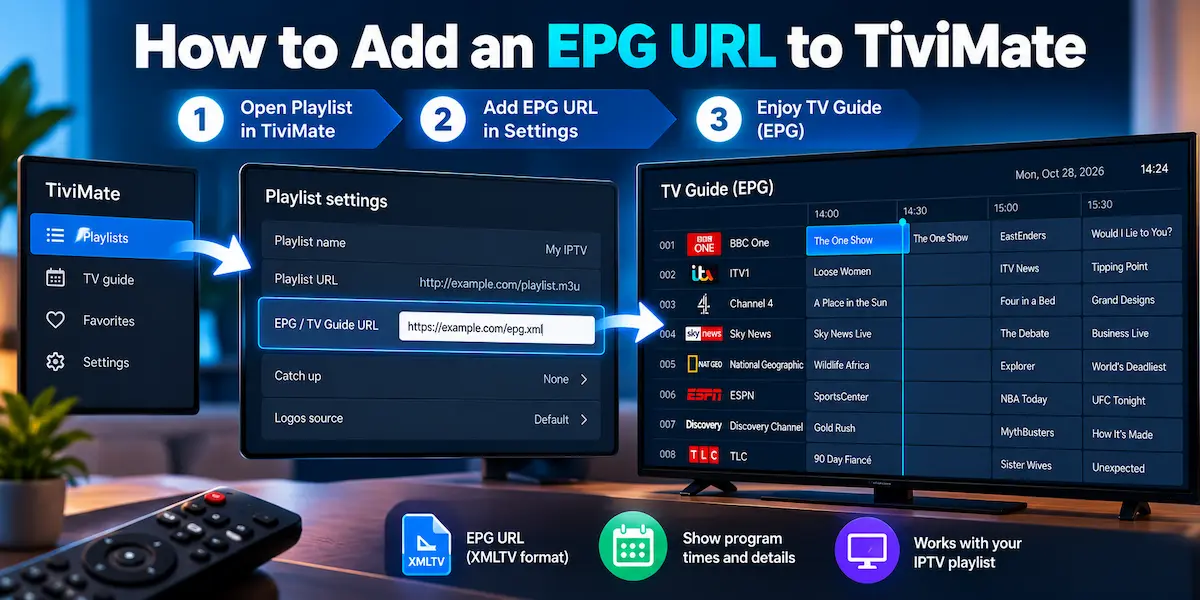
TiviMate is another popular IPTV player that supports external EPG sources.
The general workflow is:
- Open TiviMate.
- Go to Settings.
- Open EPG.
- Select EPG sources.
The exact menu wording can change between versions, so if an option is named slightly differently, look for EPG, TV Guide, or EPG Sources.
After updating, allow the application to finish downloading and processing the guide.
For a detailed TiviMate walkthrough, see our complete How to Add EPG to TiviMate guide.
How to Add EPG to TiviMate (Step-by-Step Guide)
How to Add an EPG URL to IPTV Smarters
The exact interface can vary depending on the version and platform.
In general, an IPTV application using an M3U-based setup may require the EPG source to be associated with the playlist.
A typical workflow is:
IPTV Smarters
     ↓
Playlist / Live TV Settings
     ↓
EPG
     ↓
Add EPG URL
     ↓
Enter XMLTV URL
     ↓
Save
     ↓
Update EPG
If your version does not provide a separate EPG URL field, the EPG may instead be supplied by the playlist or account configuration.
ALSO READ :
How to Fix IPTV EPG Not Working (2026) – TiviMate & IPTV Smarters Guide
How to Add an EPG URL on Android TV
Android TV itself does not provide one universal EPG system for all IPTV applications.
The IPTV application controls how EPG sources are configured.
Therefore, the process usually looks like:
Android TV
   ↓
Install compatible IPTV player
   ↓
Configure M3U / account
   ↓
Open EPG settings
   ↓
Add XMLTV URL
   ↓
Update EPG
Always use the configuration instructions for your specific IPTV player.
Why Is My EPG Not Showing?
Adding an EPG URL does not guarantee that the guide will appear.
There are several possible causes.
1. The EPG URL Is Incorrect
Check the URL carefully.
For example:
https://example.com/epg.xmlis different from:
https://example.com/epg.xml.gzDo not assume that every IPTV player handles every compressed or redirected source in the same way.
2. The EPG Server Is Offline
Your IPTV playlist can work perfectly while the EPG server is unavailable.
This is because the two resources may be hosted separately.
M3U Server       → Working
EPG Server       → Offline
In that situation:
Live TV may work while the TV Guide remains empty.
3. The tvg-id Does Not Match
This is one of the most important EPG problems.
Your M3U might contain:
tvg-id="bbc-one.uk"while the XMLTV file contains:
<channel id="bbc1.uk">The identifiers do not match.
Depending on the player, name-based matching may sometimes help, but you should not rely on it when you can provide accurate IDs.
4. The Channel Is Missing From the XMLTV File
Your M3U can contain hundreds or thousands of channels while the EPG source covers only some of them.
For example:
M3U:
500 channels

EPG:
320 channels
The remaining channels may work normally but have no guide information.
This is why EPG coverage is just as important as the availability of the EPG URL itself.
5. The EPG Has the Wrong Timezone
Another common problem is:
The EPG exists, but programs appear one or several hours early or late.
XMLTV supports timezone information in its date/time values. The XMLTV documentation shows timestamps with timezone offsets such as:
20261005180000 +0000and explains how timezone information is represented. GitHub
If the source, device, or player interprets the time incorrectly, the guide can appear shifted.
For example:
Actual program: 20:00

EPG displays:   19:00

OR
Actual program: 20:00

EPG displays:   22:00
Do not immediately replace the EPG source. First determine whether the problem is actually a timezone or time-shift issue.
6. The XMLTV File Is Invalid or Incomplete
An EPG source may exist at a URL but still contain malformed or incomplete XMLTV data.
A valid XMLTV document normally contains a <tv> root element with channel and programme information.
For example:
<?xml version="1.0" encoding="UTF-8"?>

<tv>

    <channel id="channel.example">
        <display-name>Example TV</display-name>
    </channel>

    <programme
        start="20261005180000 +0000"
        stop="20261005190000 +0000"
        channel="channel.example">

        <title>Evening News</title>

    </programme>

</tv>
The XMLTV project publishes the DTD and format documentation for the XMLTV structure. wiki.xmltv.org
7. The Player Has Not Refreshed the EPG
Sometimes the EPG URL is correct but the application is still displaying an older cached guide.
Try:
- Open EPG settings.
- Update or refresh the EPG.
- Close and reopen the application.
- Check the TV Guide again.
If the player provides an option to clear EPG data or refresh the playlist, use it carefully.
How to Check Whether Your IPTV Source Is Working
Before troubleshooting the EPG, it is useful to determine whether the problem is actually the IPTV source.
If your credentials previously worked and the player suddenly stops connecting, you can use our IPTV Checker to check the server response and verify whether the authorized account and source are responding correctly.
A useful troubleshooting sequence is:
1. Check IPTV source
        ↓
2. Check M3U playlist
        ↓
3. Check EPG URL
        ↓
4. Check XMLTV availability
        ↓
5. Check tvg-id matching
        ↓
6. Check timezone
        ↓
7. Refresh EPG
This prevents you from changing the EPG when the actual problem is the IPTV source.
What Is the Difference Between an EPG URL and an XMLTV URL?
In IPTV discussions, these terms are often used interchangeably.
An EPG URL describes the location of the electronic program guide.
An XMLTV URL describes a URL serving EPG data in XMLTV format.
Therefore, an XMLTV URL can be an EPG URL.
For example:
EPG URL
    ↓
https://example.com/guide.xml
    ↓
XMLTV data
    ↓
IPTV Player
    ↓
TV Guide
However, not every possible EPG format is necessarily XMLTV.
Can an EPG URL Provide IPTV Channels?
No.
This is an important distinction.
An EPG source normally contains program metadata, not the video stream itself.
For example:
EPG:
Channel: Example TV
Program: Evening News
Start: 18:00
Stop: 19:00
It does not necessarily contain:
https://example.com/live/channel.m3u8The stream URL belongs to the playlist or other authorized streaming configuration.
Therefore:
EPG = program information
while:
M3U = playlist and stream information
How to Match M3U Channels With XMLTV EPG
For reliable EPG matching, pay close attention to the channel identifiers.
M3U
#EXTINF:-1 tvg-id="channel.example" tvg-name="Example TV",Example TV
https://example.com/live/example.m3u8
XMLTV
<channel id="channel.example">
    <display-name>Example TV</display-name>
</channel>
The important relationship is:
M3U
tvg-id
   │
   │ matches
   ↓
XMLTV
channel id
The XMLTV specification defines the channel attribute of a programme and the id attribute of channel entries. GitHub
If these identifiers are inconsistent, the player may fail to associate the guide with the stream.
What Should a Good EPG Source Contain?
When choosing an EPG source, look beyond the URL itself.
A useful EPG source should ideally have:
- Accurate channel IDs
- Good channel coverage
- Current program schedules
- Correct timezone information
- Valid XMLTV structure
- Reliable availability
- Regular updates
- Correct channel names
- Program descriptions where available
- Channel logos where available
For example:
EPG Quality
│
├── Availability
├── Channel Coverage
├── tvg-id Accuracy
├── XMLTV Validity
├── Program Freshness
├── Timezone Accuracy
└── Update Frequency
Why Does My IPTV Player Show Channels but No EPG?
This is one of the most common IPTV configuration problems.
If the channels play normally but the TV Guide is empty, check these items in order:
Check 1 — Is the EPG URL accessible?
Make sure the URL is correct.
Check 2 — Does the source contain XMLTV data?
A URL returning an error page, login page, redirect, or unrelated HTML will not necessarily work as an EPG source.
Check 3 — Does the EPG contain your channels?
An EPG source may not cover every channel in your playlist.
Check 4 — Does tvg-id match the XMLTV channel ID?
This is one of the most important checks.
Check 5 — Is the timezone correct?
A working EPG can still appear wrong because of timezone differences.
Check 6 — Did the player actually update the EPG?
Refresh the guide after changing the source.
EPG URL vs EPG File: Which Is Better?
An EPG can be supplied as a URL or as a local file, depending on what the IPTV player supports.
EPG URL
https://example.com/epg.xmlAdvantages:
- Can be updated remotely
- No manual file replacement
- Suitable for regularly updated guides
- Convenient for IPTV applications
Local XMLTV File
epg.xmlAdvantages:
- Useful for testing
- Can be edited locally
- Does not depend on remote availability once downloaded
For a regularly updated IPTV setup, a reliable remote EPG URL is generally more convenient.
Can XMLTV Be Compressed?
Yes. XMLTV data can be distributed in compressed form, such as:
epg.xml.gzHowever, support can vary between IPTV players and applications.
If a player does not correctly process a compressed or redirected source, test the source format supported by that particular application.
This is particularly important when troubleshooting an EPG that works in one application but not another.
How to Test an EPG URL Before Adding It
If you are managing your own IPTV setup, it is useful to test the EPG before adding it to a player.
Check:
✓ URL responds
✓ HTTP response is successful
✓ XML is valid
✓ <tv> root exists
✓ <channel> elements exist
✓ channel IDs are present
✓ programme elements exist
✓ start/stop times are valid
✓ timezone is correct
✓ M3U tvg-id values match
A URL being accessible in a browser does not automatically mean that the EPG is usable.
The content returned by the URL matters.
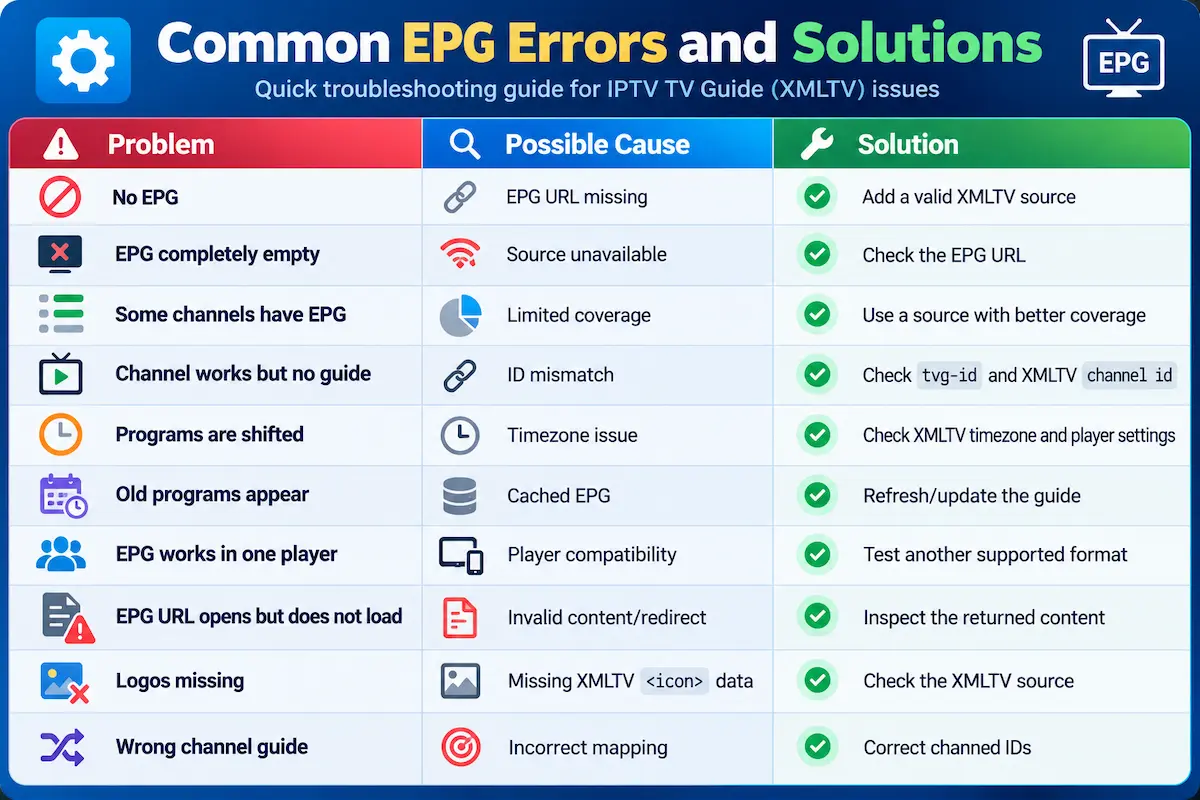
Common EPG Errors and Solutions
EPG Timezone and Time Shift
If the guide is consistently off by one or more hours, the problem may not be the EPG source itself.
For example:
XMLTV:
20:00

Player:
19:00
or:
XMLTV:
20:00

Player:
21:00
Before replacing the entire EPG, check:
- XMLTV timezone offset
- Device timezone
- Player timezone
- EPG time-shift settings
- Daylight-saving changes
Correct timezone handling is especially important for international IPTV playlists.
Best Practices for IPTV EPG Setup
For a reliable EPG configuration, follow these principles:
1. Use a reliable source
Avoid constantly changing EPG URLs.
2. Check channel coverage
A large EPG file is not necessarily a better EPG.
3. Match channel IDs correctly
The relationship between M3U tvg-id and XMLTV channel identifiers is critical.
4. Check the timezone
Incorrect timestamps can make a working EPG appear broken.
5. Refresh after changing the source
The player may continue displaying cached data.
6. Validate large EPG files
If you manage your own XMLTV feed, validation can prevent compatibility problems.
7. Keep M3U and EPG configuration separate
Troubleshoot the stream and guide independently.
Recommended EPG Troubleshooting Workflow
When an EPG does not work, don’t immediately replace everything.
Use this workflow:
                 IPTV Player
                      │
             ┌────────┴────────┐
             │                 │
          M3U/Stream          EPG
             │                 │
       Does channel       Does XMLTV
          play?             load?
             │                 │
            YES               YES
             │                 │
             │          Are channels matched?
             │                 │
             │            ┌────┴────┐
             │           YES       NO
             │            │          │
             │          EPG       Fix tvg-id
             │         should       mapping
             │         appear
             │
             └───────────────────────
This approach makes it much easier to determine where the problem actually exists.
Frequently Asked Questions
No. An M3U playlist provides stream and channel information, while an EPG source provides program schedule information.
XMLTV is an XML-based format used to represent television listings, including channels and program schedules. wiki.xmltv.org
The most common causes include an incorrect EPG URL, missing channel coverage, tvg-id/channel-ID mismatch, timezone problems, or an EPG that has not been refreshed.
No. EPG data provides program metadata and schedules. The actual video stream is normally supplied separately through an IPTV playlist or service configuration.
Often yes, provided the player supports the EPG format and the source is compatible with its requirements. However, different applications may handle formats, redirects, compression, and channel matching differently.
Check the timezone information in the XMLTV data, your device timezone, and the IPTV player’s EPG/time-shift settings.
.gz file as an EPG URL? Some IPTV applications support compressed XMLTV files, while others may have compatibility limitations. If the source does not work, test an uncompressed XMLTV version if your provider offers one.
Compare the channel identifiers in your M3U playlist with the <channel id=""> values in the XMLTV source.
Final Takeaway
Adding an EPG URL to an IPTV player is usually straightforward, but getting accurate EPG data requires more than simply pasting a URL.
The complete relationship is:
M3U Playlist
     │
     ├── Stream URL
     ├── Channel Name
     └── tvg-id
             │
             ▼
        Channel Matching
             │
             ▼
        XMLTV EPG URL
             │
             ├── Channel ID
             ├── Program Title
             ├── Description
             ├── Start Time
             └── Stop Time
             │
             ▼
        IPTV Player
             │
             ▼
          TV Guide
If the stream works but the guide does not, focus on EPG availability, XMLTV validity, channel coverage, tvg-id matching, and timezone settings before changing your IPTV player.
For XMLTV technical details, the official XMLTV documentation and DTD are useful references. wiki.xmltv.org
And if you’re setting up XCIPTV specifically, its current Google Play listing confirms support for EPG with M3U and Xtream Codes-compatible API configurations.