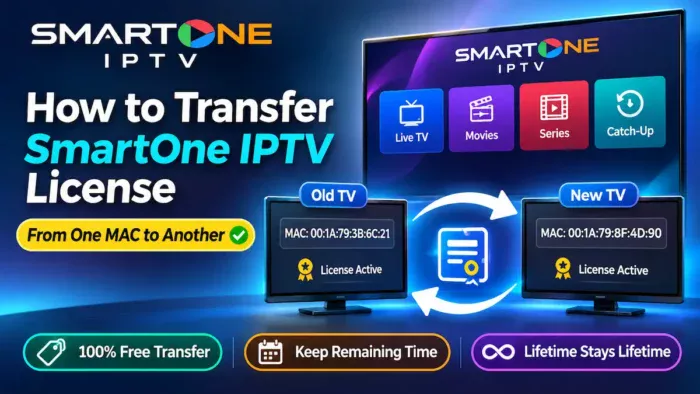
Have you purchased a SmartOne IPTV license and recently replaced your Samsung or LG Smart TV? You may be wondering whether you need to purchase another license or if you can move your existing activation to your new television.
Transfer your SmartOne IPTV license to a new TV for free without losing your remaining subscription period.
Fortunately, SmartOne IPTV provides a dedicated Transfer License feature through its online account dashboard. Based on our practical experience transferring multiple licenses, the MAC-to-MAC transfer is completely free and preserves the license type and remaining validity period. You can also visit the official SmartOne IPTV website to access the application information and account services.
In this guide, we’ll explain how the SmartOne IPTV MAC-to-MAC transfer feature works, how to use it step by step, what happens to your playlists, and what you should check before confirming the operation.
What Is SmartOne IPTV License Transfer?
SmartOne IPTV License Transfer is an account management feature that allows users to move an existing license from one device MAC address to another.
For example, imagine you originally activated SmartOne IPTV on your Samsung TV, but later purchased a new LG television.
Instead of immediately purchasing another license, you can access your SmartOne account dashboard and check whether your existing license is eligible for transfer.
The transfer interface provides three main fields:
- From MAC (Old): The MAC address of the television currently associated with the license.
- To MAC (New): The MAC address of the new television.
- Transfer Playlists?: An option to transfer associated playlists along with the license.
This makes the process particularly useful when replacing a television or moving your application to another compatible device.
What Do You Need Before Transferring Your SmartOne IPTV License?
Before starting the transfer, prepare the following information:
- Access to your SmartOne IPTV account.
- The old MAC address associated with your existing license.
- The new MAC address displayed by SmartOne IPTV on your replacement television.
- Confirmation that the new device supports the SmartOne application. If you are setting up a Samsung television, see our Samsung Smart TV IPTV setup guide.
- Your playlist information, especially if you need to configure it again.
Important: Make sure you copy both MAC addresses correctly. A mistake could result in transferring the license to the wrong device.
How to Transfer SmartOne IPTV License From Old MAC to New MAC
Follow these steps to use the Transfer License feature.
Step 1: Open the SmartOne IPTV Official Website
Visit the official SmartOne IPTV website and log in to your account. You can also use the official SmartOne support and knowledge base if you need help locating account features.
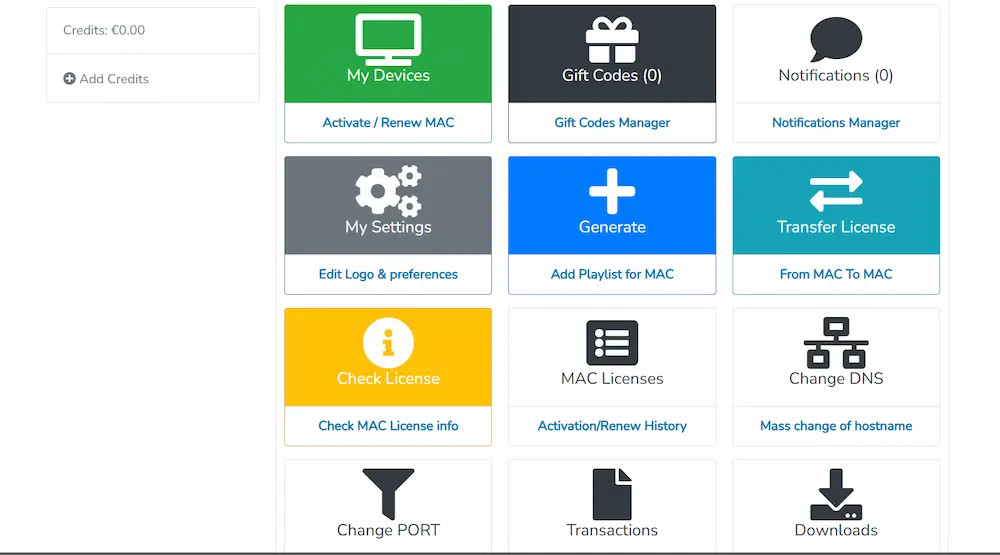
Open your account dashboard and locate the Transfer License option.
You should see a dashboard containing several management tools, including My Devices, Generate, Check License, MAC Licenses, and Transfer License.
Step 2: Open the Transfer License Page
Click the Transfer License tile.
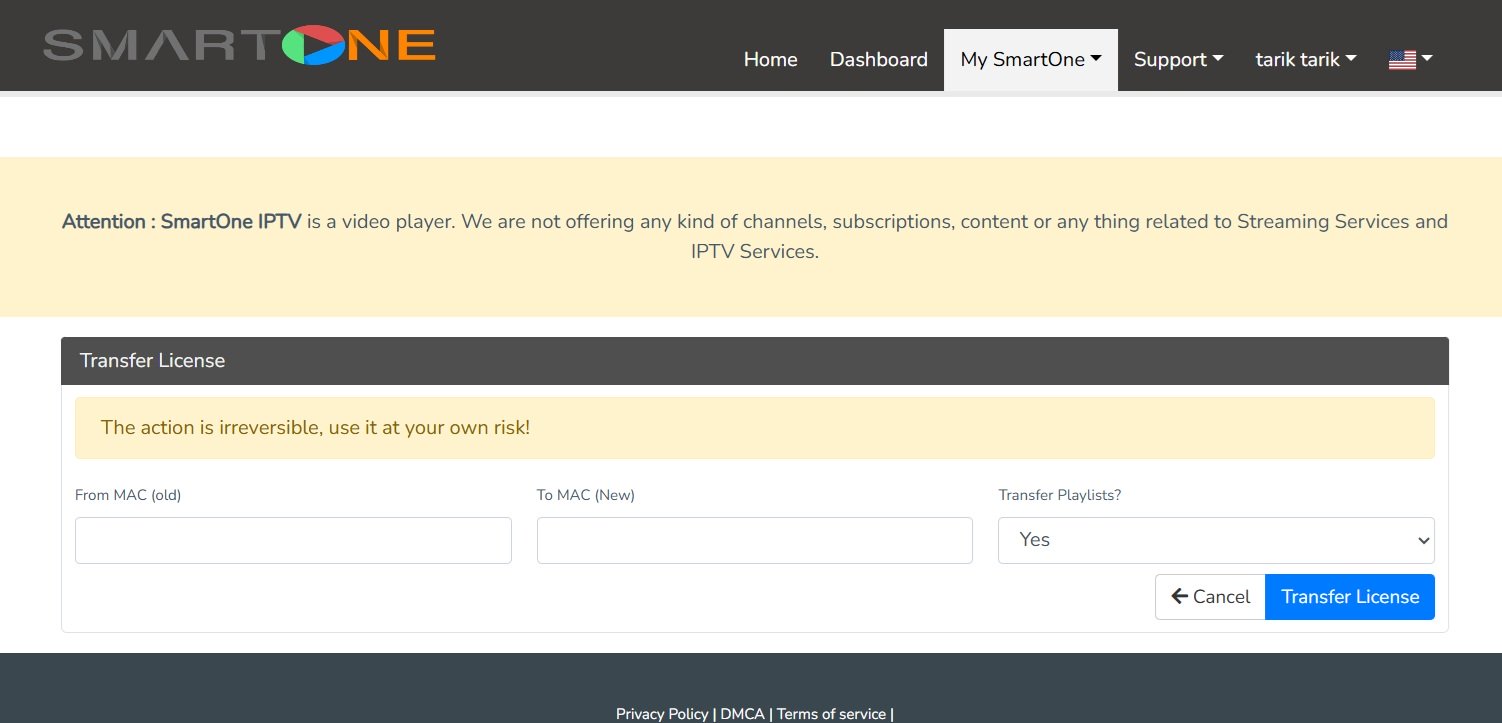
The website will open a dedicated page containing the license transfer form.
You should see three main fields:
- From MAC (Old)
- To MAC (New)
- Transfer Playlists?
The page also displays an important warning:
The action is irreversible. Use it at your own risk!
This warning is important because the transfer should not be treated as a temporary or reversible operation.
Step 3: Enter Your Old MAC Address
In the From MAC (Old) field, enter the MAC address currently associated with your SmartOne IPTV license.
This should be the address of your original television.
Double-check the information before continuing.
Step 4: Enter Your New MAC Address
In the To MAC (New) field, enter the MAC address displayed by the SmartOne IPTV application on your new television.
To find it, open SmartOne IPTV on the new device and check the application information displayed on its initial screen or device settings.
Make sure you are using the MAC address requested by SmartOne, rather than automatically assuming that the television’s Wi-Fi or Ethernet hardware MAC is the correct one.
Step 5: Choose Whether to Transfer Your Playlists
The transfer form includes a dropdown menu labeled:
Transfer Playlists?
You can choose whether to include playlists in the transfer.
- Yes: Select this if you want the associated playlists to be transferred along with the license.
- No: Select this if you prefer not to transfer the playlists as part of the operation.
If you are moving to a new television and want to keep your existing playlist configuration, selecting Yes is generally the more convenient option.
However, remember that transferring playlists does not transfer your IPTV subscription itself. Your playlist access remains dependent on the original provider and its conditions.
Step 6: Confirm the License Transfer
Before clicking the Transfer License button, carefully review all the information.
Check the following:
- Is the old MAC address correct?
- Is the new MAC address correct?
- Did you select the appropriate playlist transfer option?
- Is your new television compatible with SmartOne IPTV?
Once everything is correct, click Transfer License to submit the operation.
Remember that the page explicitly warns that the action is irreversible. Do not proceed unless you understand the consequences and have verified the information.
What Happens After Transferring Your SmartOne IPTV License?
Based on our practical experience transferring multiple SmartOne IPTV licenses, the transfer is free and the original license validity is preserved on the new device. You do not pay an additional transfer fee, and the transfer does not restart or shorten the remaining license period.
For example, if your old television has a lifetime license, the new television receives lifetime activation after a successful transfer. If your yearly license has several months remaining, the new device keeps that same remaining period.
- Lifetime license: Lifetime activation remains lifetime activation on the new device.
- License with remaining months: The same remaining validity period carries over to the new device.
- Transfer fee: The MAC-to-MAC license transfer is completely free.
After submitting the transfer request, open SmartOne IPTV on the new television and check that the application recognizes the license. If you selected the playlist transfer option, also verify whether your playlists are available on the new device.
Important: The transfer form warns that the action is irreversible. Although the transfer is free and preserves the original license duration, carefully verify both MAC addresses before confirming it.
Should You Select Yes or No for Transfer Playlists?
This is one of the most important choices in the transfer form.
Here is a simple comparison:
| Option | What It Means |
|---|---|
| Yes | Request the transfer of associated playlists together with the license |
| No | Transfer the license without requesting playlist migration |
If you are replacing your old television and want to maintain your existing configuration, Yes is generally the convenient choice.
If you prefer to configure your playlists separately on the new device, you may choose No.
Keep in mind that the playlist transfer option concerns playlist configuration, not ownership of the content or an IPTV subscription.
Can You Transfer a SmartOne IPTV Lifetime License to Another TV?
Yes. Based on our experience transferring multiple SmartOne IPTV licenses, a lifetime license remains a lifetime license after a successful MAC-to-MAC transfer. The new television receives the same license type as the original device.
The same principle applies to time-limited licenses. If your original license has several months remaining, that same remaining period is carried over to the new device. The transfer does not reset the expiration date or reduce the remaining time.
The transfer is also completely free: you do not have to pay an additional fee to move the license from the old MAC address to the new one.
Before starting, make sure that the destination device supports SmartOne IPTV and that you have entered the correct MAC addresses. You can consult the official SmartOne IPTV website for application and account information.
Does Transferring the License Also Transfer My IPTV Subscription?
No. These are two separate things.
SmartOne IPTV is a media player, not an IPTV subscription provider.
Transferring your SmartOne application license does not automatically move, renew, or replace your IPTV subscription.
If your playlist comes from a third-party provider, its access conditions remain subject to that provider.
Even when you select Yes in the Transfer Playlists dropdown, you should not assume that your provider’s subscription, account credentials, or server access will be changed.
What If the SmartOne IPTV License Transfer Does Not Work?
If you encounter a problem during the transfer process, consider these checks:
1. Incorrect MAC Address
Check both addresses carefully. The old address must correspond to the original licensed device, while the new address must match the SmartOne application on the destination device.
2. License Not Recognized
Open the SmartOne dashboard and use the Check License option to review the available license information.
3. Playlists Are Missing
If the license transfer succeeds but your playlists are not displayed, check the selected Transfer Playlists option.
You may also need to review the playlist configuration on the new television.
4. Transfer Request Fails
If the website does not complete the operation, do not repeatedly attempt the transfer.
Contact SmartOne support and provide the relevant license and device information through its official support and knowledge base.
SmartOne IPTV Dashboard: More Than License Transfers
The Transfer License feature is only one of several tools available through the SmartOne account dashboard.
Users can also access device activation and renewal, playlist configuration, license information, settings, notifications, and transaction-related options.
If you want to understand all these tools, including My Devices, Generate, Check License, MAC Licenses, Notifications Manager, Change DNS, and more, read our complete guide:
For an overview of the application, its features, setup, and account management options, read our SmartOne IPTV Review 2026. You can also visit the official SmartOne knowledge base for help with the app and client area.
Frequently Asked Questions
Yes. SmartOne IPTV provides a Transfer License feature in its online dashboard. Based on our experience, you can transfer the license from the old MAC address to the new one for free.
Yes. Based on our practical experience transferring multiple SmartOne IPTV licenses, the MAC-to-MAC transfer is completely free. No additional transfer fee is charged, and the original license duration is preserved on the new device.
You can enter the old device’s MAC address and the new device’s MAC address in the Transfer License form. The destination television must support SmartOne IPTV.
The transfer form includes a Transfer Playlists option. Selecting Yes requests that the associated playlists be transferred along with the license. Always verify the result on your new device.
The transfer page explicitly warns that the operation is irreversible. You should therefore verify both MAC addresses before submitting the request.
Not necessarily. SmartOne provides a free MAC-to-MAC transfer option. Based on our experience, the license type and remaining validity period are preserved on the new device, so you should check the transfer option before purchasing another license.
No. The original license duration is preserved. A lifetime license remains a lifetime license, and a license with several months remaining keeps the same remaining period after the transfer. The MAC-to-MAC transfer is free.
No. The SmartOne application license and your IPTV subscription are separate. Your playlist provider determines whether your subscription can be used on another device.
Final Thoughts
The SmartOne IPTV Transfer License feature is a useful option for users who replace their Smart TVs or move their application to another compatible device. For a broader look at the player, see our SmartOne IPTV Review 2026.
Instead of assuming that a new television always requires a completely new activation, users can check their account dashboard and explore the MAC-to-MAC transfer option.
The process itself is straightforward: enter the old MAC address, provide the new MAC address, decide whether to transfer playlists, and carefully review the information before submitting the request.
Our advice: Never rush the final step. SmartOne explicitly warns that the transfer is irreversible, so double-check everything before confirming your license migration.