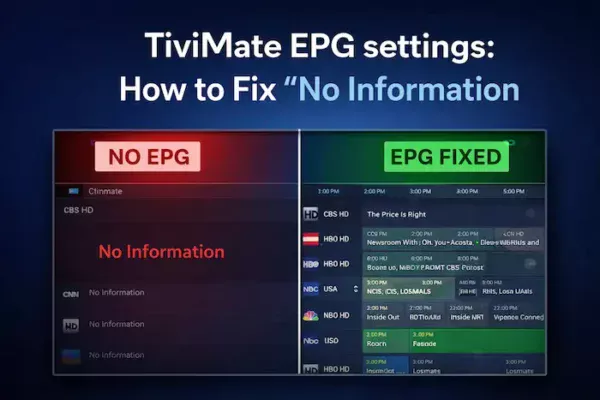
If you’re tired of seeing “No Information” on your TiviMate screen, you’re definitely not alone.
TiviMate itself works great — smooth playback, clean interface — but the moment the EPG stops working, everything feels broken. No program names, no schedule, no idea what’s playing.
The good news? In most cases, it’s not a serious problem. It’s just a mix of wrong settings, weak EPG sources, or small mismatches that are easy to fix once you know where to look.
How to Add EPG in TiviMate (Proper Way)
Let’s start with the basics — but done the right way.
Steps:
- Open TiviMate
- Go to Settings
- Enter EPG tv
- Don’t have an EPG URL yet? You can choose the right one for your country from our 👉 free EPG TV lists.
- Select EPG Sources
- Click Add Source
- Paste your XMLTV URL
- Confirm and run Update EPG
👉 Generate XMLTV EPG from your M3U link in one click
Something most guides don’t tell you:
Not all EPG links behave the same way.
- Some won’t load unless your playlist is already added
- Others may fail silently if the server blocks unknown apps (User-Agent issue)
If an EPG link doesn’t load, it doesn’t always mean it’s dead — sometimes it just isn’t compatible with your setup.
Advanced EPG Settings That Actually Matter
This is where most people fix 80% of their issues.
Go to: Settings → EPG
Adjust these:
- Update on app start → ON
Keeps things fresh automatically. - Update interval → 24 hours
Shorter intervals can overload weak EPG servers. - Past days to keep EPG → 2–3 days
Useful if you rely on Catch-up.
Real-world tip:
If your EPG takes too long to load or fails randomly, try reducing the number of days stored. Large EPG files can slow everything down.
Fixing Wrong Program Timing (Time Shift)
If the schedule looks correct but the timing is off, you’re dealing with a timezone mismatch.
Fix:
- Go to Settings → EPG → EPG Sources
- Select your source
- Adjust Time Shift
Example:
- Programs showing late → use +1
- Programs showing early → use -1
It usually takes a bit of trial and error, but once set, it stays stable.
When the Problem Is the EPG Source Itself
Here’s something many users realize too late:
Sometimes your IPTV provider’s EPG is simply bad.
Missing channels, outdated data, or completely empty schedules — no amount of tweaking inside TiviMate will fix that.
The Professional Fix: Build Your Own Guide
If your EPG remains incomplete or keeps missing specific channels, the hard truth is that your provider’s data is simply poor. In my experience, the only way to get 100% coverage is to take control of the data yourself.
We developed a custom M3U to EPG Converter specifically for this reason. It allows you to generate a fully customized XMLTV file directly from your playlist, ensuring every channel matches perfectly and no program data is missing.
👉 Check the full guide and use the tool here to fix your guide for good.
How to Fix “No Information” in TiviMate
This is the most common issue — and usually a combination of small problems.
Go through this checklist:
- Check the EPG URL carefully
One wrong character = no data. - Update EPG manually
Don’t rely only on auto-update. - Restart the app/device
Sounds basic, but it works surprisingly often. - Clear cache
Fixes corrupted or stuck data.
🔧 Manual Assignment (Important but often ignored)
Sometimes the issue isn’t the EPG itself — it’s the channel mapping.
If the channel name in your playlist doesn’t match the EPG ID, TiviMate won’t link them automatically.
Fix it manually:
- Long-press the channel
- Open Group Options / Channel Options
- Select Assign EPG
- Choose the correct channel manually
This is especially common with:
- International channels
- Custom or renamed playlists
- Low-quality IPTV providers
Once assigned, the data appears instantly.
Pro Tip: When the Problem is the Source, Not the App
If you’ve followed all the steps above and still see gaps in your guide, the hard truth is that your IPTV provider’s EPG might simply be broken or low-quality. TiviMate is a powerful player, but it can’t display data that doesn’t exist.
To fix this for good, I highly recommend using a dedicated, high-quality XMLTV source. I’ve put together a Step-by-Step Guide on How to Get a Brilliant EPG Working in your player, which covers how to find and integrate professional EPG sources that never fail. Combining that guide with these TiviMate settings is the ultimate way to get a 100% complete TV guide.
Extra Tips From Experience
- Avoid adding too many EPG sources — they can conflict
- Use .xml.gz links (compressed) for faster loading
- If EPG fails randomly, it’s often a server-side issue, not your setup
- Some providers require matching channel IDs (tvg-id) — without it, auto-mapping fails
FAQ
Usually due to:
Invalid EPG URL
Poor provider data
Channel mismatch (fixed via manual assignment)
Yes — but results depend on how well the channel IDs match.
This often means:
The source works, but channels aren’t mapped
Or your provider uses non-standard naming
Every 24 hours is the safest and most stable option.
Final Thoughts
A working EPG completely changes how TiviMate feels — from a basic player to something close to a real TV system.
Most issues come down to three things:
- Weak EPG source
- Incorrect mapping
- Small setting mistakes
Fix those, and everything just works.