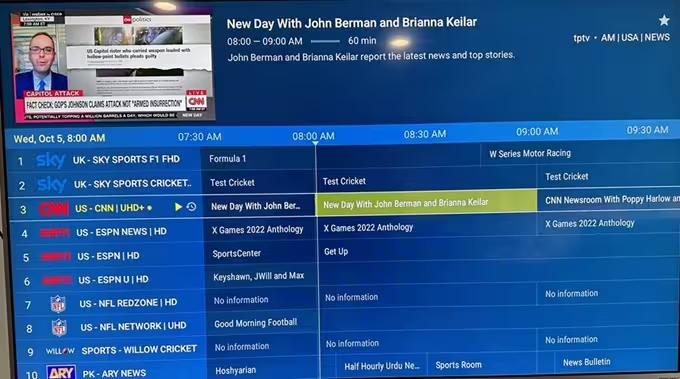
An Electronic Program Guide (EPG) transforms your IPTV service from a simple list of channels into a powerful, interactive television experience. While understanding the theory is important, the practical setup is what brings it all to life. The process is straightforward, but it requires precision. A single misplaced character in a URL can be the difference between a fully functional guide and a blank screen.
This guide provides a clear, step-by-step process for setting up your EPG in popular IPTV players. We will walk you through finding your EPG source, inputting it correctly into TiviMate and IPTV Smarters Pro, and updating the data to get your guide running perfectly.
1. Where to Find Your IPTV EPG XMLTV URL
The data for your EPG comes from a specific web link, known as an EPG URL or XMLTV source. This link points to a file that contains all the scheduling information, program descriptions, and channel data your player needs to display the guide.
Your IPTV provider is responsible for giving you this URL. You can typically find it in one of two places:
- Your Welcome Email: When you first signed up, your provider likely sent an email with your login credentials. The EPG URL is often included in this initial communication.
- Your Customer Panel: Most IPTV services have an online dashboard or customer portal where you can manage your subscription. Log in and look for a section labeled “M3U Link,” “Playlist Information,” or “EPG URL.”
The URL will look similar to a standard website address but often ends with .xml or .php. Here are a few common formats:
http://yourprovider.com/epg.xmlhttp://yourprovider.com/xmltv.php?username=USER&password=PASS
Copy this URL exactly as it appears. You will need it for the next step.
🛠️
Avoid Manual Setup Mistakes!
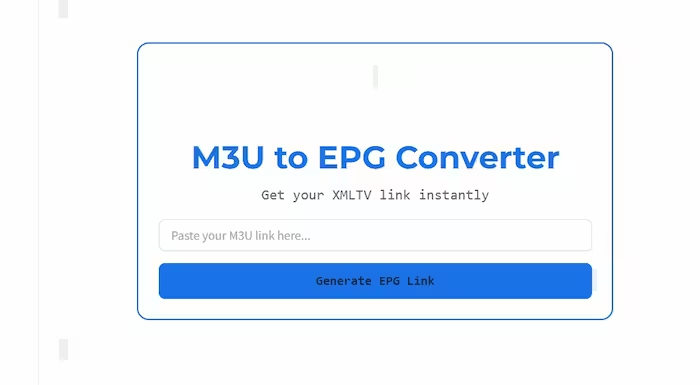
Tired of typing long and complex XMLTV URLs? A single typo can break your entire EPG. Use our automated tool to generate a clean, working link for TiviMate and IPTV Smarters in just one click!
2. Adding EPG to TiviMate and IPTV
Once you have your EPG URL, the next step is to add it to your IPTV player. The process varies slightly between apps, but the core concept is the same. Here’s how to do it in two of the most popular players: TiviMate and IPTV Smarters Pro.
Setting Up the EPG in TiviMate
TiviMate is known for its extensive customization and robust EPG handling. Adding a source is simple.
- Open TiviMate and go to Settings.
- Navigate to the Playlists section.
- Select the playlist you want to add the EPG to.
- Tap on EPG sources.
- Select Add source.
- A new window will appear. Paste the EPG URL you copied earlier into the “Enter URL” field. You can also give the source a recognizable name.
- Click Done to save the source.
Setting Up the EPG in IPTV Smarters Pro
IPTV Smarters Pro integrates the EPG setup directly into the playlist or user login process, making it very accessible.
- When you add a new user or playlist, you will see several fields for your credentials.
- Look for a dedicated field labeled “EPG URL,” “Electronic Program Guide URL,” or “Install EPG URL.”
- Paste your EPG URL into this field.
- Complete the rest of the login process and add the user. The app will automatically associate the EPG source with that playlist.
If you have already added your playlist, you may need to edit it or re-add it to include the EPG URL.
3. Assign and Update the Guide
Adding the URL is the main step, but you need to tell your player to download the data. This final step involves assigning the source and performing a manual update.
In TiviMate, after adding the source, you’ll be returned to the EPG sources screen.
- Make sure the checkbox next to your newly added EPG source is ticked. This assigns it to your playlist.
- Go back to the main Settings menu and select EPG.
- Tap on Update EPG. The player will begin downloading the guide data. This may take a few minutes depending on the size of the guide and your internet speed.
In IPTV Smarters Pro, the EPG usually updates automatically after you log in. If it doesn’t, you can force a refresh:
- From the main dashboard, find the “Live TV” or “EPG” section.
- Look for an option called “Refresh EPG” or “Update EPG,” often found within a menu or settings icon on that screen.
- Trigger the update and wait for it to complete.
Once the update is finished, navigate to your TV guide. You should now see a populated, brilliant EPG ready for you to explore.
Pro Tip: Accuracy is everything. Your EPG URL must be entered exactly as provided by your service. A single typo, an extra space, or using “https” instead of “http” (or vice-versa) will cause the link to fail, resulting in a blank or incomplete guide. Always double-check the URL before saving.
Conclusion: Take Control of Your TV Guide
Setting up your Electronic Program Guide is a quick but essential task for any IPTV user. By following these simple steps, you can ensure your player has access to the rich, detailed data needed to create a seamless and professional viewing experience. You no longer have to guess what’s on—you can now browse, plan, and discover content with confidence and ease.
🔍 Frequently Asked Questions (FAQ)
This usually happens due to an incorrect XMLTV URL, an expired subscription, or a temporary server issue. Make sure your EPG source is correctly added and try a manual update in your player settings.
You can generate a free XMLTV EPG link using our M3U to EPG Converter. It extracts the necessary data from your playlist to provide a functional guide for TiviMate and other players.
An M3U link contains the stream addresses for the channels, while an EPG URL (XMLTV) provides the metadata, such as program schedules, descriptions, and channel logos.
Yes! The process is almost identical. You simply need to paste your EPG/XMLTV URL into the “Install EPG” section within the app’s settings or during the initial login.
Most guides are updated daily. We recommend setting your player (like TiviMate) to “Update on App Start” or “Every 24 Hours” to ensure you always have the latest movie and sports schedules.