
Nothing ruins a high-stakes football match or a 4K movie premiere in 2026 more than the dreaded “spinning circle.” As streaming quality moves towards 8K, the demands on your home network and Smart TV are higher than ever. If you are experiencing lag, freezing, or constant buffering, you are not alone.
Based on our technical testing on Samsung, LG, and Sony Smart TVs, here are the 7 proven methods to stop IPTV buffering once and for all.
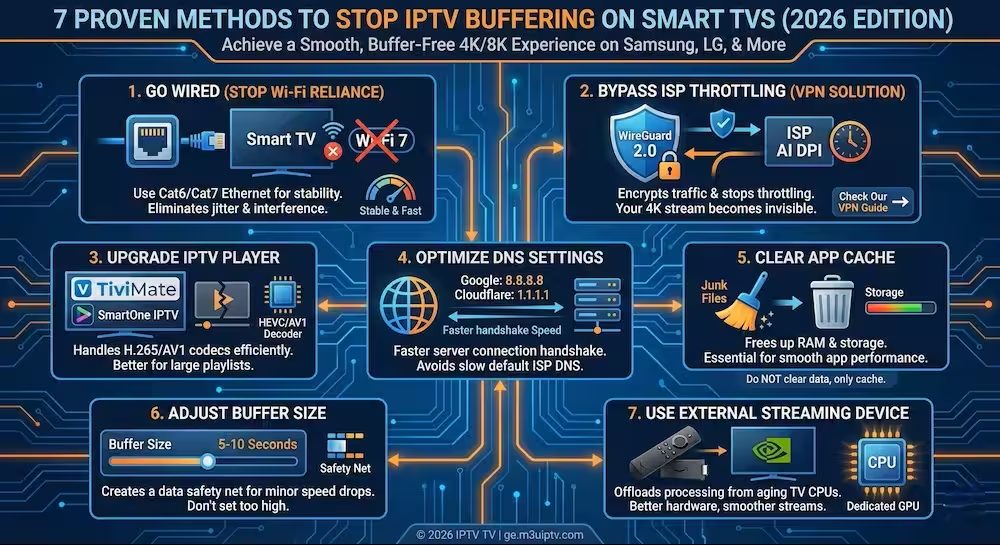
1. Use a Wired Ethernet Connection (Stop Relying on Wi-Fi)
Even with Wi-Fi 7 becoming common in 2026, wireless signals are still prone to interference from microwaves, neighbors’ networks, and thick walls.
- The Fix: Connect your Smart TV directly to your router using a Cat6 or Cat7 Ethernet cable. This ensures a dedicated, stable “pipe” for your data, reducing latency (jitter) significantly compared to Wi-Fi. It cuts out packet loss, which is the primary cause of freezing.
2. Bypass AI-Driven ISP Throttling (The VPN Solution)
In 2026, many Internet Service Providers (ISPs) use AI-driven Deep Packet Inspection (DPI) to detect high-bandwidth streaming. Once they see you are using an IPTV service, they intentionally slow down your speed to manage network congestion.
- The Fix: Use a high-quality VPN with the WireGuard 2.0 protocol. This encrypts your traffic, making it invisible to your ISP. To your ISP, your 4K stream just looks like secure online gaming or web browsing, forcing them to give you your full connection speed.
💡 Pro Tip: Check our guide on the [5 Best Cheap VPNs for IPTV in 2026] to find the fastest and most affordable options for your TV.
3. Switch to a High-Performance IPTV Player
Not all apps are created equal. Some built-in Smart TV apps are poorly coded and struggle with large M3U playlists (10,000+ channels) or heavy EPG (Electronic Program Guide) data.
- The Fix: If you have a Samsung or LG TV, we highly recommend SmartOne IPTV or IPTV Smarters Pro. For Firestick or Android TV users, TiviMate remains the gold standard for stability and customization.
- Why: These players use advanced video decoders that handle H.265 (HEVC) and AV1 codecs much more efficiently than generic apps.
4. Optimize Your DNS Settings
Sometimes your ISP’s default DNS server is slow, overloaded, or even blocks certain streaming sources, causing a delay in connecting to the IPTV stream.
- The Fix: Manually change your TV’s network settings to use a public DNS.
- Google DNS:
8.8.8.8and8.8.4.4 - Cloudflare DNS:
1.1.1.1and1.0.0.1
- Google DNS:
- Result: This often improves the “handshake” speed between your TV and the IPTV server, reducing initial loading time.
5. Clear App Cache and Manage Internal Storage
Smart TVs have limited RAM and storage. If your TV’s memory is full of “junk” files from Netflix, YouTube, and other apps, your IPTV player won’t have the resources to buffer video smoothly.
- The Fix: Go to your TV settings > Apps > [Your IPTV App] > Clear Cache. Do NOT clear data (unless you want to log in again). Also, delete any apps you no longer use to free up space. For LG WebOS, use the “Device Care” feature.
6. Adjust the “Buffer Size” in App Settings
Most professional IPTV players (like TiviMate) allow you to adjust the “Buffer Time” (usually measured in milliseconds or seconds).
- The Fix: If your internet is slightly unstable, increase the buffer size to 5 or 10 seconds. This allows the app to download more video in advance, creating a “safety net” against minor speed fluctuations. Be careful: setting it too high (e.g., 30 seconds) can cause the stream to take longer to start.
7. Consider an External Streaming Device
While modern Smart TVs are great, their internal processors can struggle with heavy 4K streams after a few years of software updates. The CPU in a TV is usually weaker than a dedicated streaming device.
- The Fix: If your TV’s built-in apps are constantly lagging, consider an external device like the Amazon Fire TV Stick 4K Max (2026 edition) or an Nvidia Shield TV Pro. These devices have dedicated GPUs that handle video decoding much better than most TV sets.
Quick Troubleshooting Checklist
| Step | Action | Difficulty |
| 1 | Switch from Wi-Fi to Ethernet | Easy |
| 2 | Connect to a VPN (WireGuard 2.0) | Moderate |
| 3 | Update to TiviMate / SmartOne | Easy |
| 4 | Change DNS to 1.1.1.1 | Moderate |
| 5 | Clear App Cache | Easy |
| 6 | Increase Buffer Size | Moderate |
| 7 | Buy a Firestick 4K Max | Hard (Cost) |
Frequently Asked Questions (FAQ)
A: For a stable 4K stream, you need a consistent 25-50 Mbps. However, speed isn’t everything. Stability (low jitter and packet loss) is more important. A 30 Mbps wired connection will outperform a 100 Mbps Wi-Fi connection that keeps dropping signal.
A: A VPN cannot increase the physical speed coming into your house. However, if your internet is fast enough (25 Mbps+) but buffering occurs, the VPN stops ISP throttling. If your base speed is below 10 Mbps, the stream will buffer regardless of the VPN.
A: This is usually due to Network Congestion. During peak hours (evening), your local network and your ISP’s lines are busier. Also, the IPTV provider’s server might be overloaded. Using a VPN can help bypass ISP congestion by routing your traffic differently.
A: No. Clearing Cache only removes temporary files (like album art or old EPG data). It does not delete your username, password, or channel list. Clearing Data does erase your login details. Always choose “Clear Cache” first.
A: This is a common issue. Phones have newer processors and better Wi-Fi antennas. Your TV might have an older, weaker network card. This is a classic sign that you should consider Method #7 (using an external device like a Firestick) or ensure you are on a 5GHz Wi-Fi band instead of 2.4GHz.
A: In 2026, modern routers are quite efficient, but a weekly restart (every Sunday, for example) helps clear the router’s memory (cache) and forces it to choose the cleanest channels for Wi-Fi. This is a good habit for maintaining low latency.
The Verdict: Is it Your Internet or the Server?
Before blaming your TV, always run a speed test on the TV itself. If your speed is fine but buffering persists, the issue might be your IPTV provider’s server being overcrowded.
However, in 90% of cases, ISP Throttling is the culprit. Using a VPN is the single most effective way to reclaim the speed you are already paying for. Combine that with an Ethernet cable, and you will likely eliminate 99% of your buffering issues.
Do you have a specific buffering issue not covered here? Feel free to ask in the comments!