If you use IPTV on Android TV, chances are you have already heard of TiviMate. It is one of the most popular IPTV players because it offers a clean interface, fast navigation, and excellent support for playlists and program guides.
An EPG (Electronic Program Guide) is what shows you the schedule for live TV channels. Without it, your IPTV app may still play channels, but you will not see what is currently airing or what is coming next.
In this guide, you will learn how to add EPG to TiviMate step by step, how to fix common problems, and how to improve your setup for better results.
For users who want to verify their IPTV credentials before adding them to TiviMate, you can also try our IPTV Checker Pro Online tool.
What You Need Before You Start
Before adding EPG to TiviMate, make sure you have the following:
- The TiviMate app installed on your Android TV device
- A working IPTV subscription
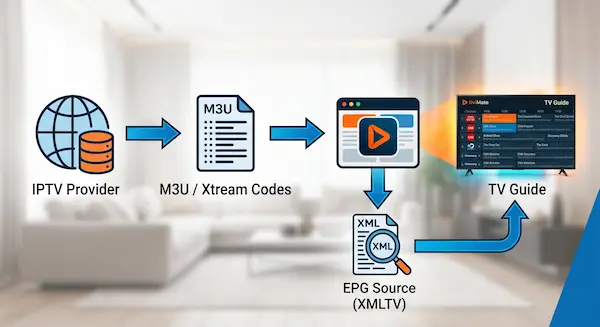
- Either an M3U playlist or Xtream Codes API login
- A valid EPG URL in XMLTV format
- A stable internet connection
You can download TiviMate from the official TiviMate website or from the Google Play Store.
EPG data is usually delivered in XMLTV format, which is a widely used standard for TV listings. If you want to learn more about the format itself, you can check the XMLTV project.
Step 1: Install and Open TiviMate
If you have not installed TiviMate yet, download it from the official source and open the app on your Android TV device.
When you launch TiviMate for the first time, it will ask you to add a playlist. This is where your IPTV subscription begins.
Step 2: Add Your IPTV Playlist
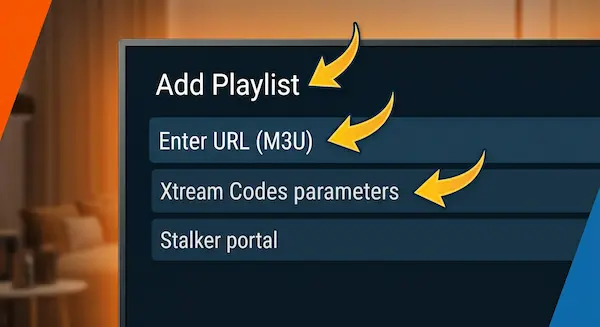
TiviMate supports both M3U playlists and Xtream Codes API.
Option 1: Add an M3U Playlist
If your provider gave you an M3U link:
- Open TiviMate
- Select Add playlist
- Choose M3U playlist
- Paste your M3U URL
- Confirm and save
Option 2: Add Xtream Codes API
If your provider gave you Xtream Codes login details:
- Open TiviMate
- Select Add playlist
- Choose Xtream Codes
- Enter the following:
- Server URL
- Username
- Password
- Save the playlist
If your playlist does not work, or if you want to test whether your credentials are valid before adding them, use our IPTV Checker Pro Online tool.
Step 3: Add the EPG Source
Once your playlist is added, TiviMate may automatically detect an EPG source. If it does not, you can add it manually.
For a complete viewing experience and to know the exact timings of your favorite shows and matches, we always recommend linking your IPTV application with an updated Electronic Program Guide (EPG). We have provided a comprehensive library featuring ready-to-use XMLTV links for over 60 countries, updated daily and automatically. You can copy the link for your country for free by visiting our dedicated page: Comprehensive IPTV Guide (EPG XML) to ensure the best performance for your app.”
If your IPTV playlist does not include a compatible EPG source, you can generate or convert EPG data using our M3U to EPG Converter tool. This can help organize channel information and improve guide matching in TiviMate before importing your XMLTV source.
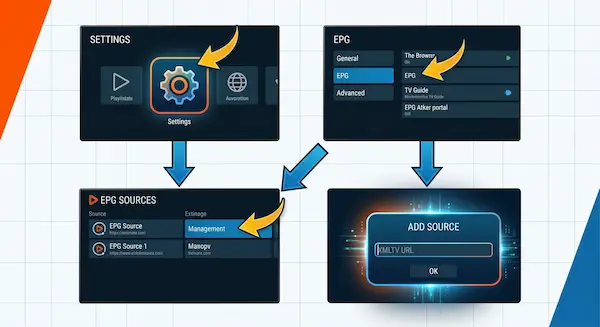
To add EPG manually:
- Open TiviMate
- Go to Settings
- Select EPG
- Open EPG sources
- Choose Add source
- Paste your XMLTV EPG URL
- Save the source
After saving, TiviMate will begin loading the guide data.
Step 4: Match the EPG to Your Channels
Sometimes the EPG source is added correctly, but some channels still do not show the right program information. In that case, you may need to match the guide manually.
To assign EPG manually:
- Go to Settings
- Open EPG
- Select Assign EPG
- Match the correct guide source to each channel
This step is especially useful if your provider uses different channel names than the EPG source.
Step 5: Refresh the EPG Data
After adding the source, TiviMate may need a few minutes to download the guide.
To refresh it manually:
- Open Settings
- Go to EPG
- Select Update EPG
If the guide still does not appear immediately, wait a little longer and try again.
Common Problems and How to Fix Them
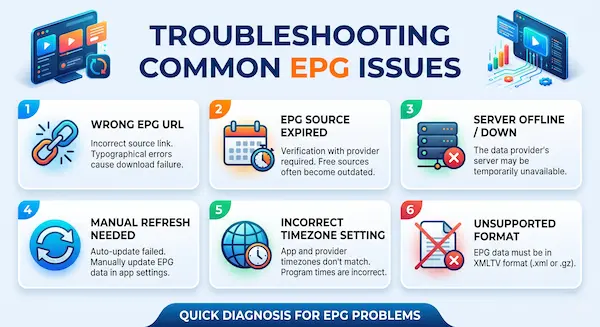
1. EPG is not showing any data
This usually happens when:
- The EPG URL is incorrect
- The source has expired
- The server is offline
- The playlist and EPG do not match
Try rechecking the URL or testing your IPTV credentials first with IPTV Checker Pro Online.
2. Some channels have no guide information
This can happen if:
- The channel names do not match the EPG source
- The provider uses a different XMLTV feed
- The channel is not included in the guide
In this case, you may need to use a custom source or manually assign the EPG.
For more advanced setup ideas, read our article on Beyond the Provider: Unleashing Custom EPG Sources.
3. The EPG time is wrong
If the guide shows the wrong time, check:
- Your device timezone
- The timezone settings in TiviMate
- Whether the EPG source is built for your region
A wrong timezone can make the guide look inaccurate even if the data itself is correct.
4. Playlist loads but EPG does not
If your IPTV playlist works but the guide does not, the issue is usually with the EPG source, not the playlist.
Try these steps:
- Remove the EPG source
- Add it again
- Refresh the guide
- Restart TiviMate
- Restart your device
Best Practices for a Better TiviMate Setup
To get the best experience with TiviMate, follow these tips:
- Use a stable IPTV provider
- Keep a backup EPG source
- Test your playlist before adding it
- Use clean and updated XMLTV URLs
- Avoid sharing private playlist links publicly
- Refresh the EPG regularly
If you manage multiple IPTV sources, it is also a good idea to keep notes about which playlist works best with which EPG feed.
Convert M3U Playlists into EPG Data
Working with custom IPTV playlists? Generate structured EPG data to improve channel mapping, guide accuracy, and your overall TiviMate experience.
🚀 Try the M3U to EPG ConverterWhy EPG Matters in IPTV
A good EPG makes IPTV much easier to use. Instead of guessing what is on, you can:
- See the current program
- Check what is coming next
- Browse channels more efficiently
- Improve the overall viewing experience
For many users, a working EPG is just as important as the playlist itself.
Frequently Asked Questions (FAQ)
EPG stands for Electronic Program Guide. It provides program schedules, channel information, and upcoming broadcasts directly within the TiviMate app, making it easier to browse and manage IPTV content.
Common causes include an incorrect EPG URL, temporary server issues, outdated playlist information, or problems with the EPG provider. Refreshing the EPG or verifying the source URL often resolves the issue.
TiviMate can automatically update EPG data based on the settings configured in the application. Users can also manually refresh the guide at any time.
Yes. TiviMate allows users to add and manage multiple EPG sources, which can improve guide coverage and accuracy for different channel groups.
XMLTV is the most widely supported and recommended EPG format for TiviMate because it provides detailed and structured program information.
Open TiviMate, navigate to Settings, select EPG, and choose the option to update or refresh the guide. The application will then download the latest schedule information.
Some free EPG sources provide excellent coverage and frequent updates, while others may have limited channels or outdated schedules. Testing multiple sources is often the best approach.
Final Thoughts
Adding EPG to TiviMate is simple once you understand the process. First, add your IPTV playlist, then add the XMLTV EPG source, and finally refresh the guide so the data appears correctly.
If you want to improve your IPTV setup even further, make sure your playlist is valid before importing it. You can do that with our IPTV Checker Pro Online tool.
For users who want to go beyond standard provider guides, our article on custom EPG sources explains how to build a more flexible and reliable setup.
TiviMate becomes much more powerful when your playlist and EPG are properly configured. Once everything is set up, you will have a smoother and more organized IPTV experience.